Settings
Find your way around AgentOne's settings page and search for any setting.
Open settings from the account menu at the bottom of the sidebar, or press Cmd + , on macOS or Ctrl + , on Windows and Linux.
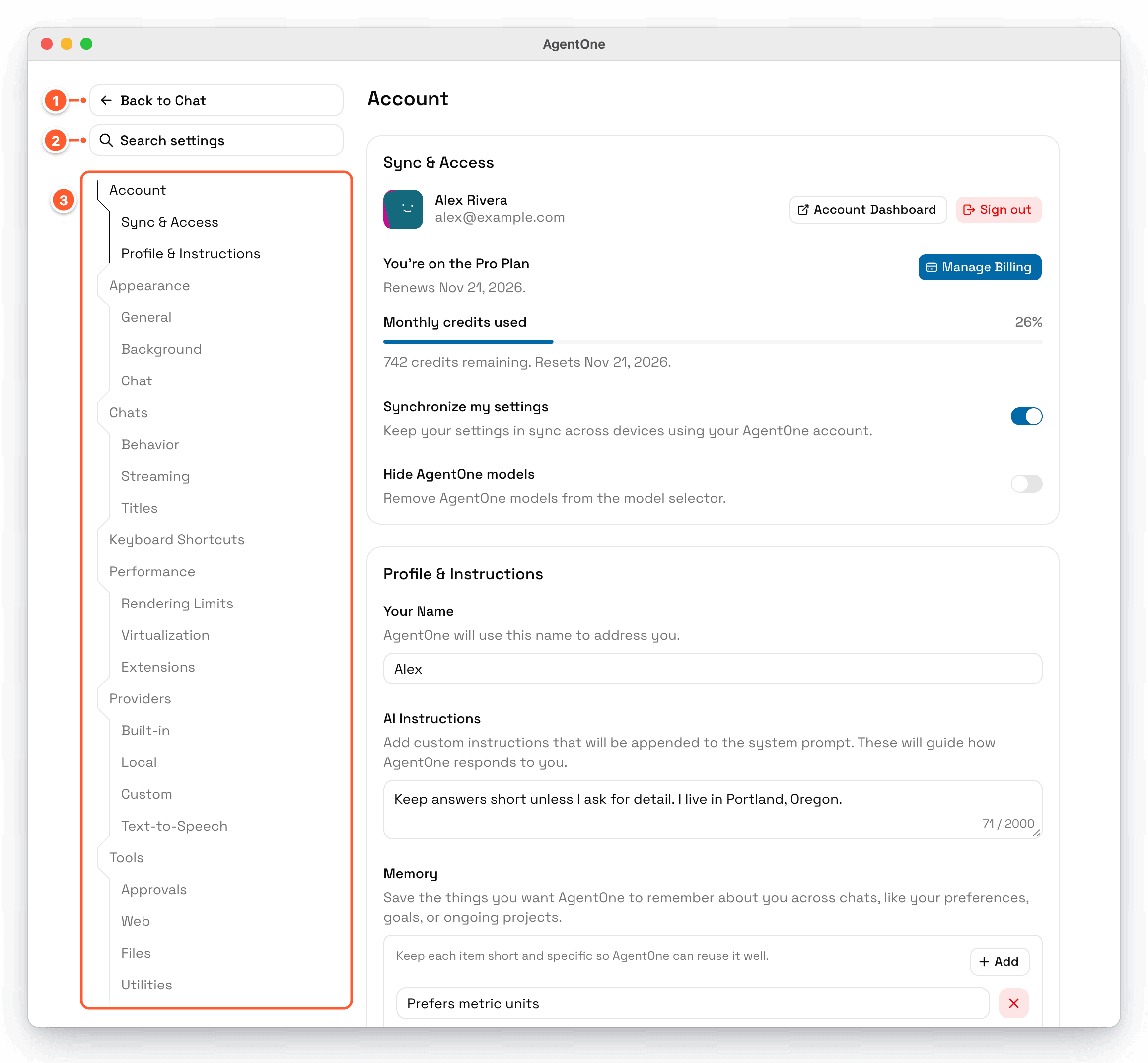
- Back to Chat returns you to the chat you were in.
- Search settings finds any setting by name.
- The sidebar lists every section and card. It follows along as you scroll, and you can click any entry to jump to it.
Settings is one long page, so you can also just scroll through everything.
Search Settings
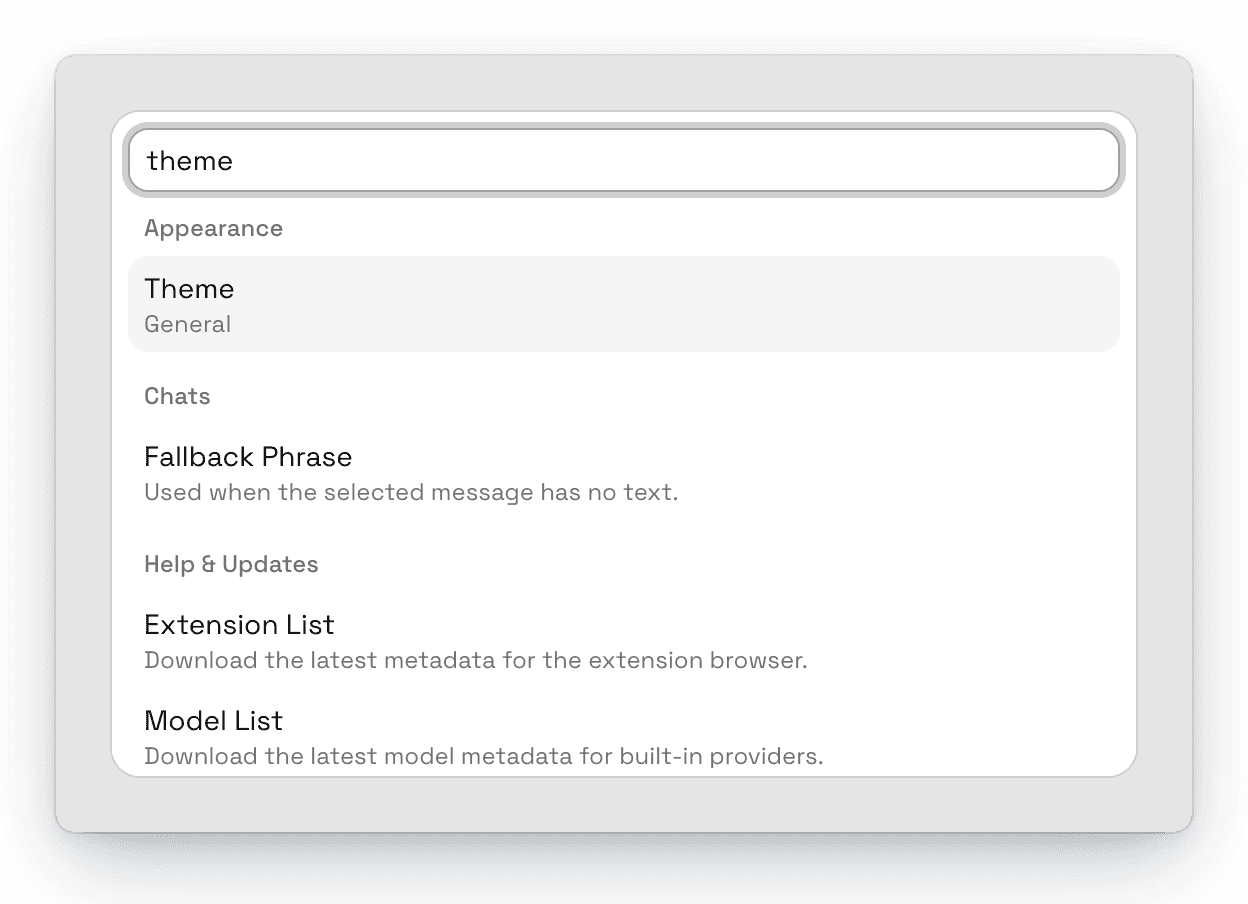
Press Cmd + K (macOS) or Ctrl + K (Windows and Linux) on the settings page, or click Search settings. Search understands related words, so "dark mode," "night mode," and "color scheme" all find Theme. Choose a result to scroll to it. The setting briefly highlights so you can spot it.
Reset a Setting
Most settings have a reset button on the right. Click it to go back to the default value.
Let AgentOne Change Settings for You
You can ask AgentOne to change many settings, like "Switch to dark mode" or "Make the text larger." It uses its built-in settings tools and asks for your approval before changing anything. Private settings, like your API keys and account, can't be read or changed this way. See Tools & Approvals.
Sections
| Section | What it controls |
|---|---|
| Account | Sign-in, plan and credits, sync, your name, AI instructions, and memory |
| Appearance | Theme, colors, font, roundness, text size, and chat backgrounds |
| Chats | Sorting, notifications, send keys, streaming, and chat titles |
| Keyboard Shortcuts | Change any shortcut |
| Performance | Limits that keep huge chats fast |
| Providers | Built-in, local, and custom providers, plus text-to-speech |
| Tools | Built-in tools, approvals, and computer use permissions |
| Help & Updates | App version, updates, model and extension lists, and help links |
Most settings sync across your devices when you're signed in.