Tools & Approvals
The built-in tools AgentOne can use, and how to control when it asks for your approval.
Tools are what let AgentOne take action. AgentOne comes with a set of built-in tools, and you can add more with extensions. Every built-in tool is turned on by default, and tools that can change things on your computer ask for your approval first.
Approving a Tool
When AgentOne wants to use a tool that needs approval, it pauses and shows you exactly what it wants to do.
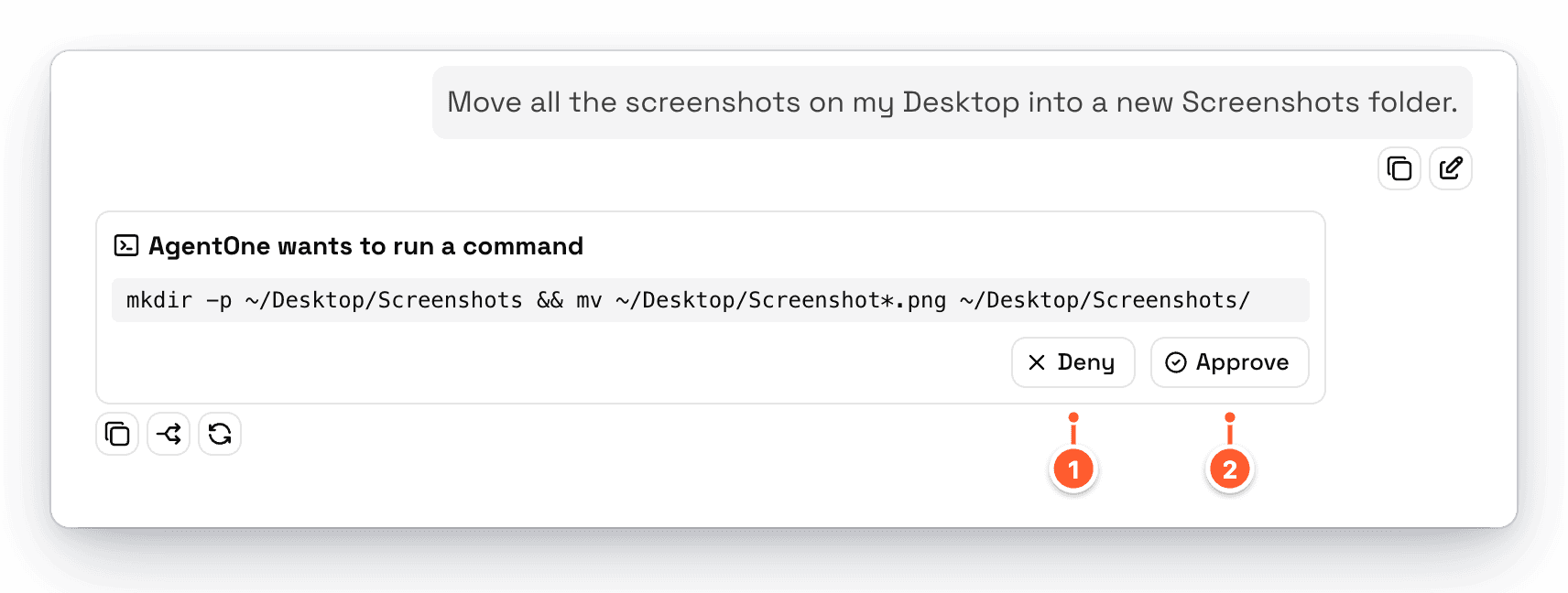
- Deny stops the tool. AgentOne is told you said no and continues from there.
- Approve runs the tool and lets AgentOne continue.
While a tool is waiting for approval, you can't send new messages in that chat. If you're in another chat or another app, AgentOne can notify you that it needs your approval.
Tool Behavior
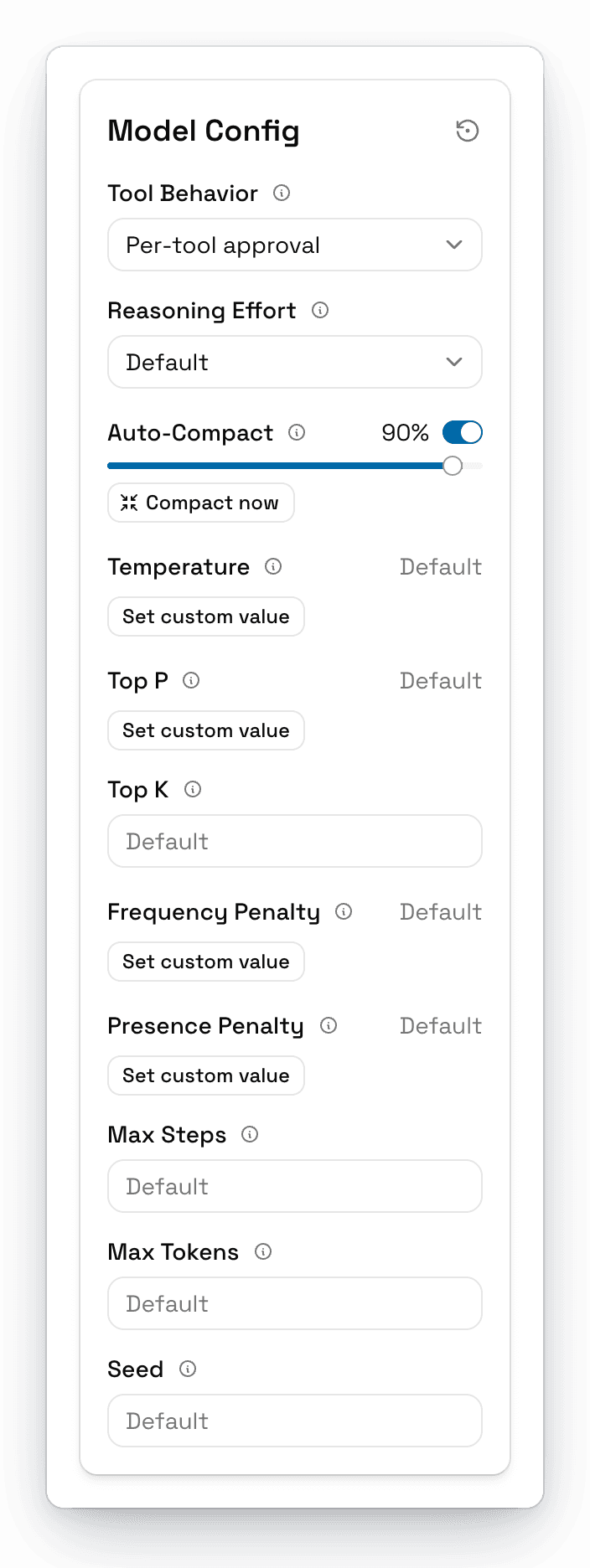
Tool Behavior controls approvals for the whole chat. Find it in the model configuration panel next to the model selector.
| Option | What it does |
|---|---|
| Per-tool approval | Uses each tool's own approval setting (default). Sensitive tools ask first; read-only tools don't. |
| Always ask | Asks for approval before running every tool. |
| YOLO (auto-run) | Runs every tool without asking. Use with caution. |
| No tools | Turns off all tools for this chat, so AgentOne can only chat. |
When you change Tool Behavior in a new, empty chat, it becomes the default for future chats.
YOLO Mode
YOLO mode lets AgentOne work without stopping for approval. That's handy for long tasks you trust, but it means AgentOne can edit or delete files, run commands, and change settings without asking. The first time you choose it, AgentOne asks you to confirm:
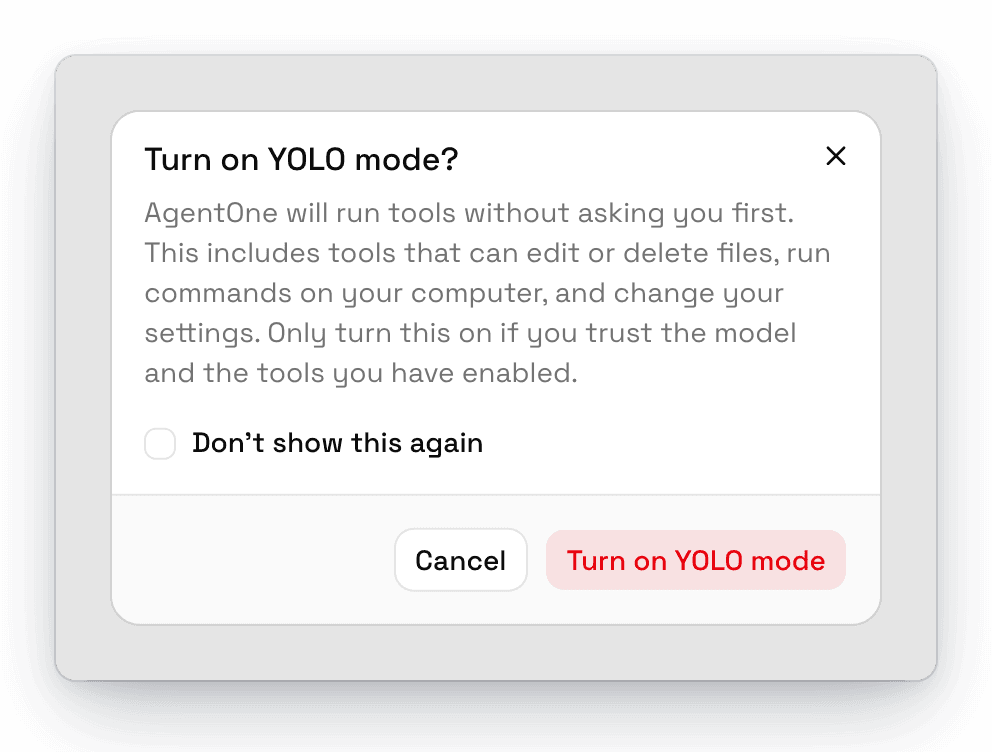
Check Don't show this again to skip the warning in the future. You can turn it back on with Settings -> Tools -> Confirm before turning on YOLO mode.
Only use YOLO mode with models and extensions you trust. AgentOne won't switch to YOLO mode by itself. You always have to choose it.
Built-in Tools
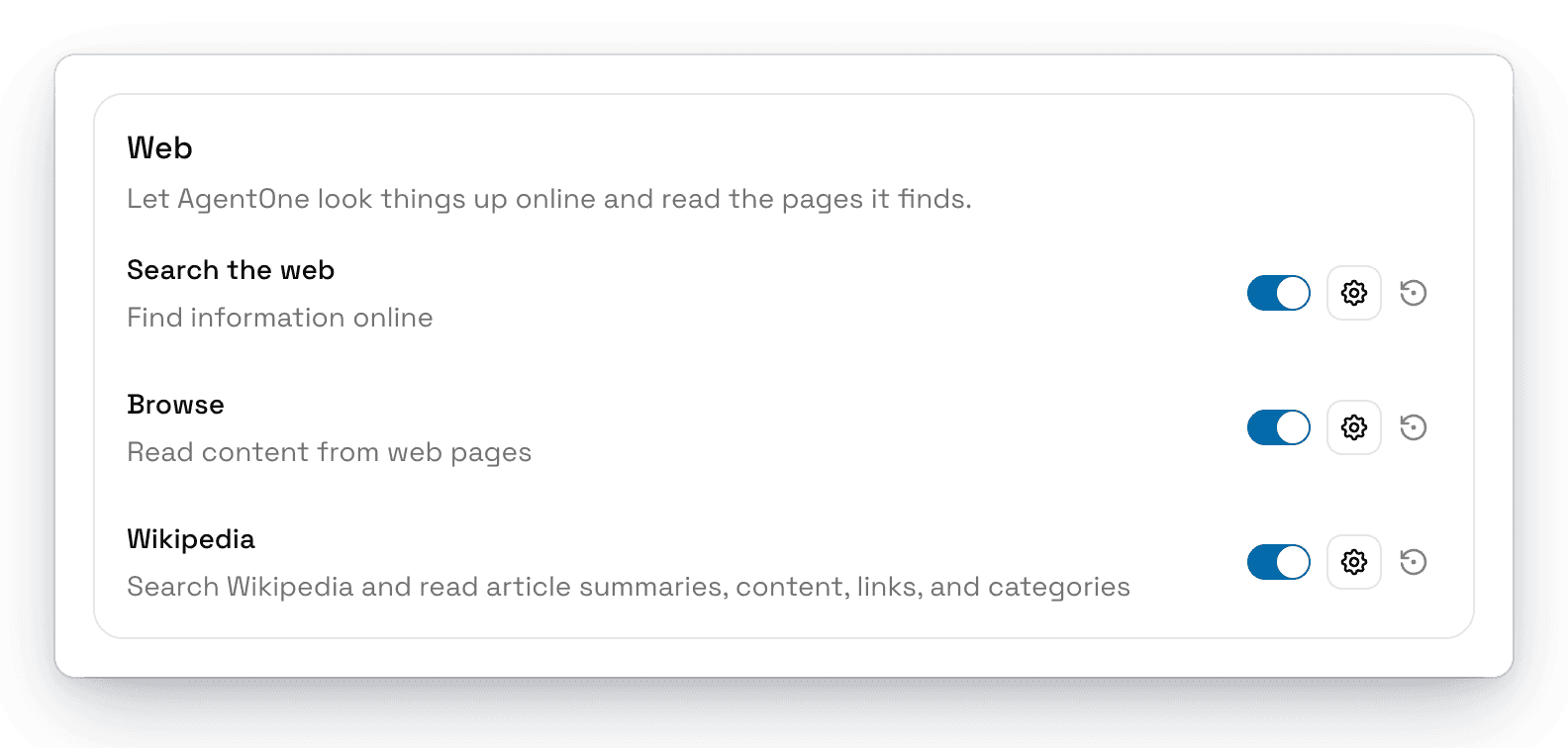
Manage built-in tools in Settings -> Tools. Each tool has a switch to turn it on or off, a gear button for its options, and a reset button.
| Group | Tool | What it does | Asks first by default |
|---|---|---|---|
| Web | Search the web | Searches the web with DuckDuckGo | No |
| Browse | Reads the content of web pages | No | |
| Wikipedia | Searches Wikipedia and reads articles | No | |
| Files | View file | Reads files on your computer | No |
| Edit file | Changes text in a file | Yes | |
| Create file | Creates new files | Yes | |
| Delete file | Deletes files | Yes | |
| Utilities | Current date and time | Checks the date and time | No |
| Pause | Waits for a short time | No | |
| Memory | Saves and updates memories about you | No | |
| System | Run command | Runs terminal commands on your computer | Yes |
| Spawn subagent | Hands a task to a subagent | Yes | |
| AgentOne Settings | List settings | Lists the settings AgentOne can change | No |
| Get setting | Reads a setting's current value | No | |
| Update setting | Changes a setting for you | Yes | |
| Scheduled Agents | List scheduled agents | Lists your scheduled agents | No |
| Create scheduled agent | Creates a scheduled agent | Yes | |
| Update scheduled agent | Changes a scheduled agent | Yes | |
| Delete scheduled agent | Deletes a scheduled agent | Yes | |
| Chat History | Search chats | Searches your past chats | Yes |
| Read chat | Reads a past chat | Yes | |
| Computer Use | See apps | Finds your apps and reads what's on screen | Yes |
| Use apps | Clicks, types, and scrolls in other apps | Yes |
Changing settings by asking
With the AgentOne Settings tools, you can just ask, for example "Switch to dark mode" or "Make the text bigger." Some settings, like your API keys and sign-in, can't be read or changed by AgentOne.
Tool Options
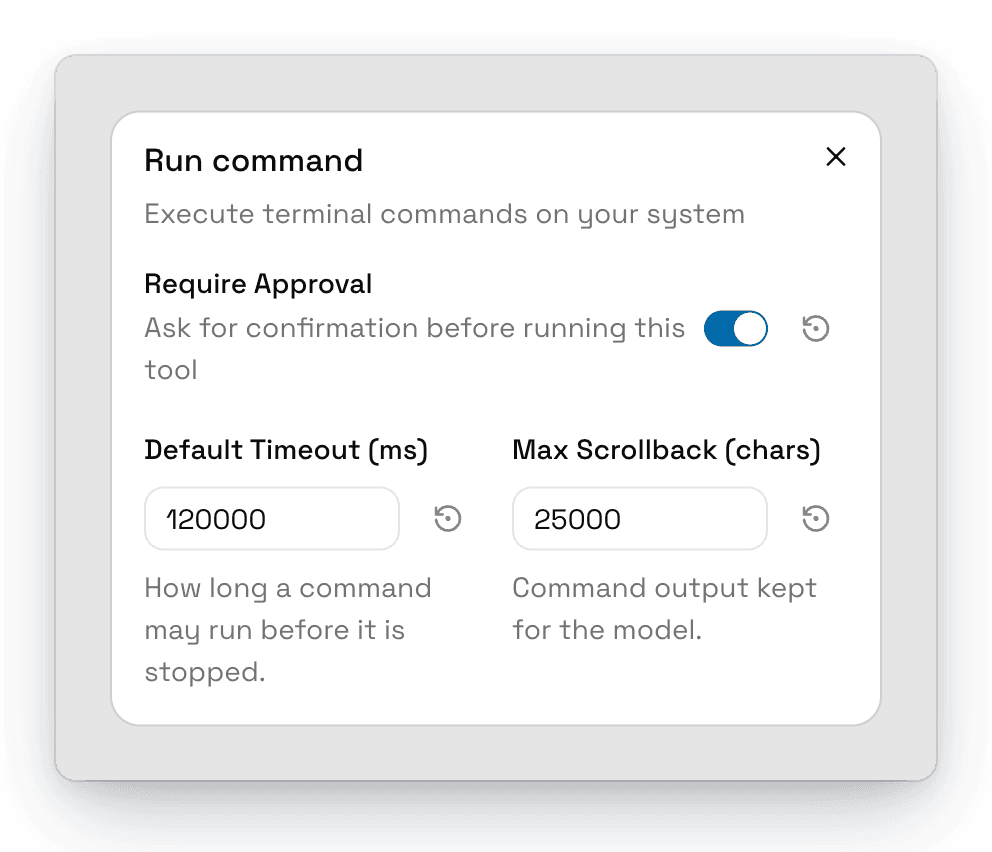
Click the gear next to a tool to change its options. Every tool has Require Approval. Some have more, for example:
| Tool | Options |
|---|---|
| Search the web | Max Concurrent Searches, Default Max Results, Default Max Pages |
| Browse | Min URLs, Max URLs, Default Max Content Length |
| Wikipedia | Default Max Results |
| View file | Default Max Characters |
| Current date and time | Use UTC |
| Pause | Min Duration (ms), Max Duration (ms) |
| Run command | Default Timeout (ms), Max Scrollback (chars) |
| Search chats | Default Max Results |
| Read chat | Default Read Length (chars), Max Read Length (chars) |
How Commands Run
Run command uses zsh on macOS, sh on Linux, and cmd on Windows. Commands run as your user, in the same environment as your terminal, so they can find tools you've installed with Homebrew, nvm, and similar tools.
More Tools with Extensions
Want AgentOne to work with Gmail, Notion, GitHub, or something else? Install an extension. Extension tools have their own approval settings. See Managing Extensions.