Your AgentOne Account
What an AgentOne account gives you, and how to sign in and out of the desktop app.
You can use AgentOne without an account by connecting your own AI provider. An AgentOne account adds:
- AgentOne's own model, which works right away with free monthly credits. No API keys needed.
- Settings sync across all your computers.
- Paid plans with more credits and early access to new features. See Plans & Credits.
Sign In
You can sign in during onboarding, or any time later:
Start signing in
Open the account menu at the bottom of the sidebar and click Sign In. This takes you to Settings -> Account. Click Sign in.
Approve the sign-in in your browser
AgentOne opens a sign-in page in your web browser and shows a code under Link your account.
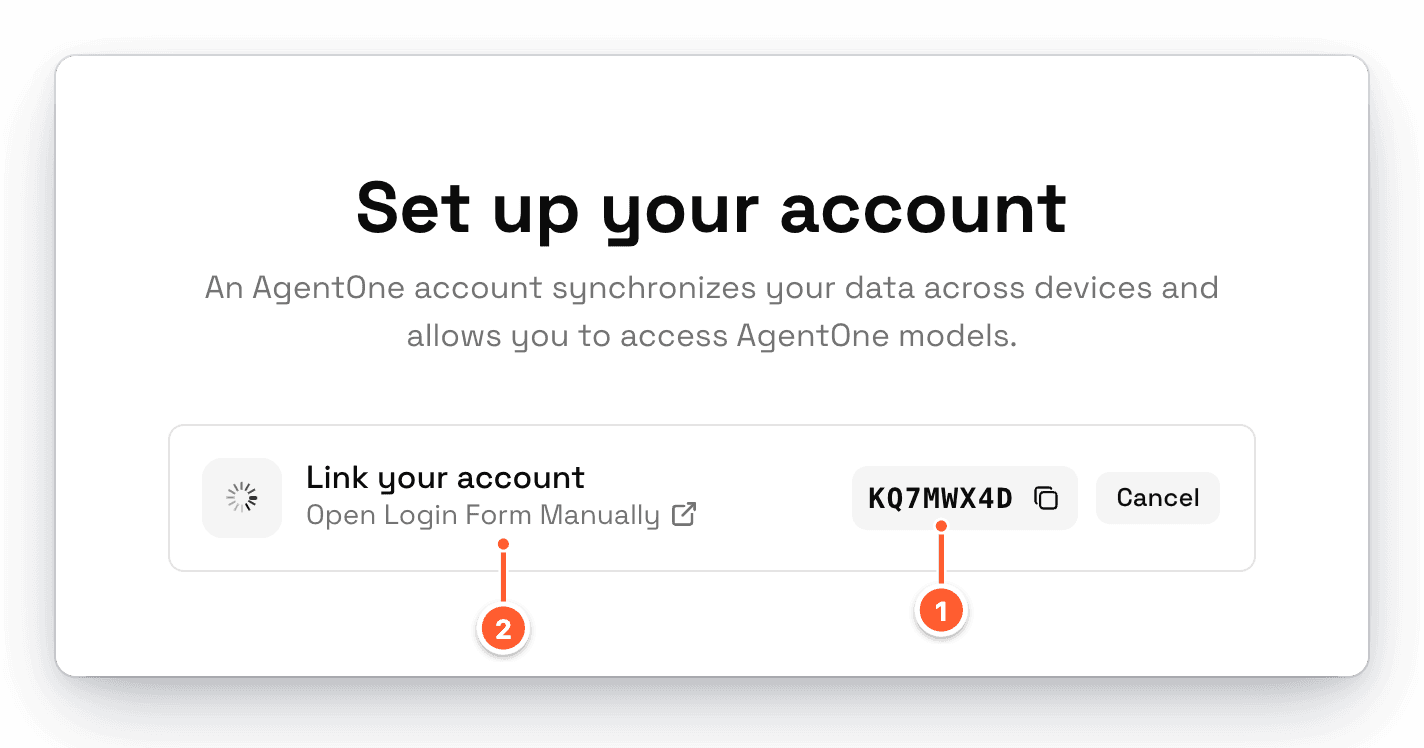
- Check that the code in your browser matches this code.
- If your browser didn't open, click Open Login Form Manually.
Sign in on the web page (or create an account with email, Google, GitHub, or Discord), then click Approve.
You're signed in
AgentOne notices the approval and finishes signing in by itself. Your name and plan appear in the account menu, and AgentOne's model appears in the model selector.
Brand-new account?
Right after you sign up, AgentOne may show Account setup in progress. Your credits usually appear within a few minutes, and chat starts working as soon as they do.
Your Account in the App
Your account details live in Settings -> Account -> Sync & Access.
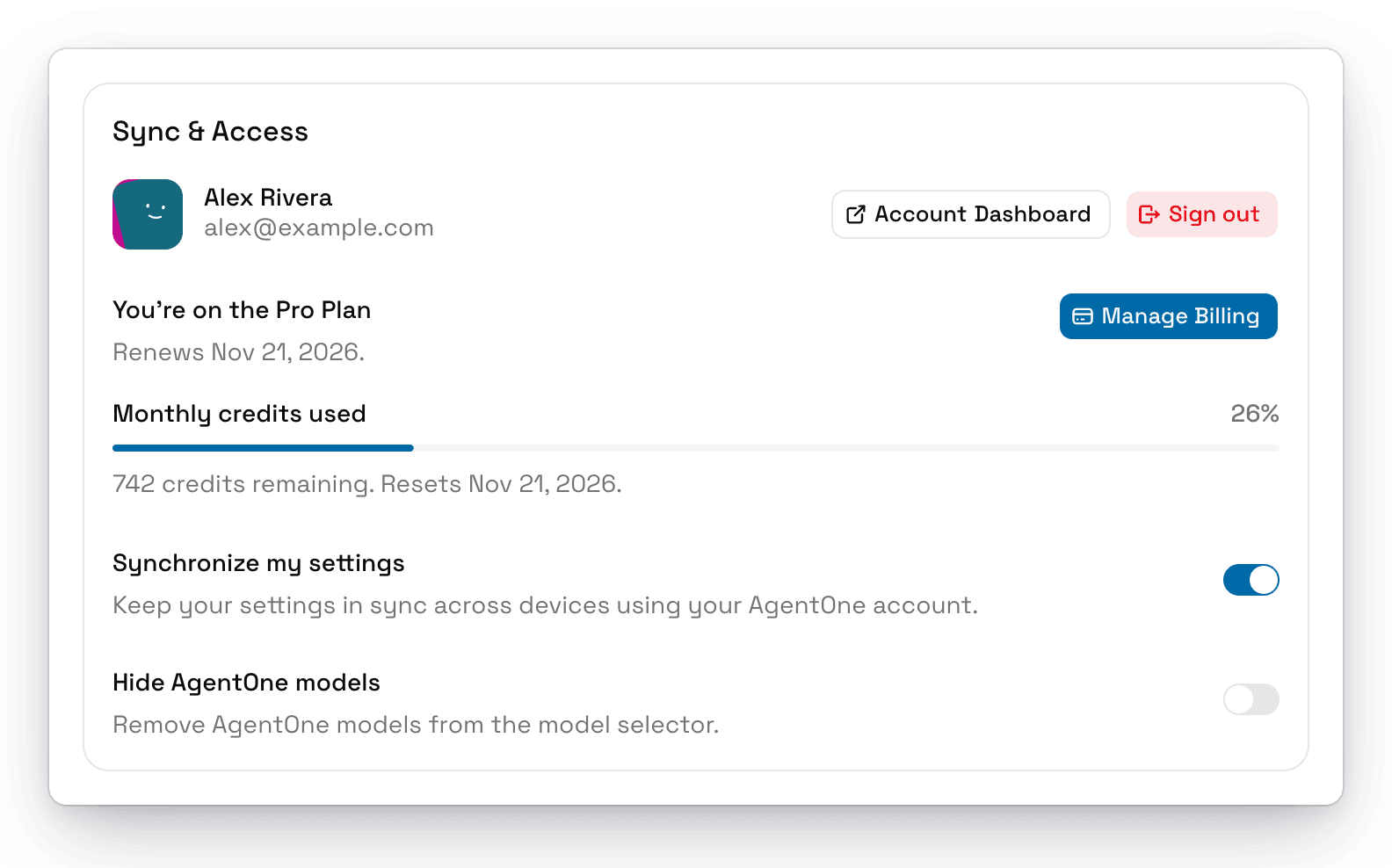
From here you can:
- Open the Account Dashboard on the web.
- See your plan, when it renews, and how many Monthly credits used you have left.
- Upgrade or Manage Billing.
- Turn Synchronize my settings on or off. See Sync & Privacy.
- Turn on Hide AgentOne models if you only want to use your own providers.
- Sign out.
The Web Dashboard
Your account dashboard at agent-one.dev/dashboard has a few more options:
| Page | What it's for |
|---|---|
| Overview | Your credit usage for the month and when it resets. |
| Billing | Change your plan, start a trial, or open the billing portal for invoices. |
| Sessions | See every device signed in to your account and revoke any you don't recognize. |
| Settings | Change your display name, email, or password, and link Google, GitHub, or Discord sign-in. |
Sign Out
Open the account menu and click Sign Out, or click Sign out in Settings -> Account. AgentOne asks you to confirm, because your settings stop syncing until you sign in again. Your chats stay on your computer.
You can also sign a device out remotely from Sessions in the web dashboard.