Chatting with AgentOne
Send messages, attach files, and stop or redirect AgentOne while it works.
Every conversation with AgentOne happens in a chat. Within a chat, AgentOne remembers everything you've talked about. Start a new chat whenever you move on to a different topic or task.
Start a Chat
Click New Chat at the top of the sidebar, or press Cmd + N on macOS or Ctrl + N on Windows and Linux. Type your message in the message box and press Enter.
Write the way you'd ask a person. The more context you give, the better the result:
Find three highly rated Thai restaurants near downtown Portland that are open
after 9pm, and put them in a table with the address and price range.
AgentOne shows its answer as it's written. If it needs to look something up, read a file, or run a command, you'll see each step appear in the chat as it happens. Some steps need your approval first.
Attach Files
To give AgentOne something to look at, attach it to your message:
- Click the paperclip button in the message box, or
- Drag files anywhere onto the chat, or
- Paste a file or image into the message box.
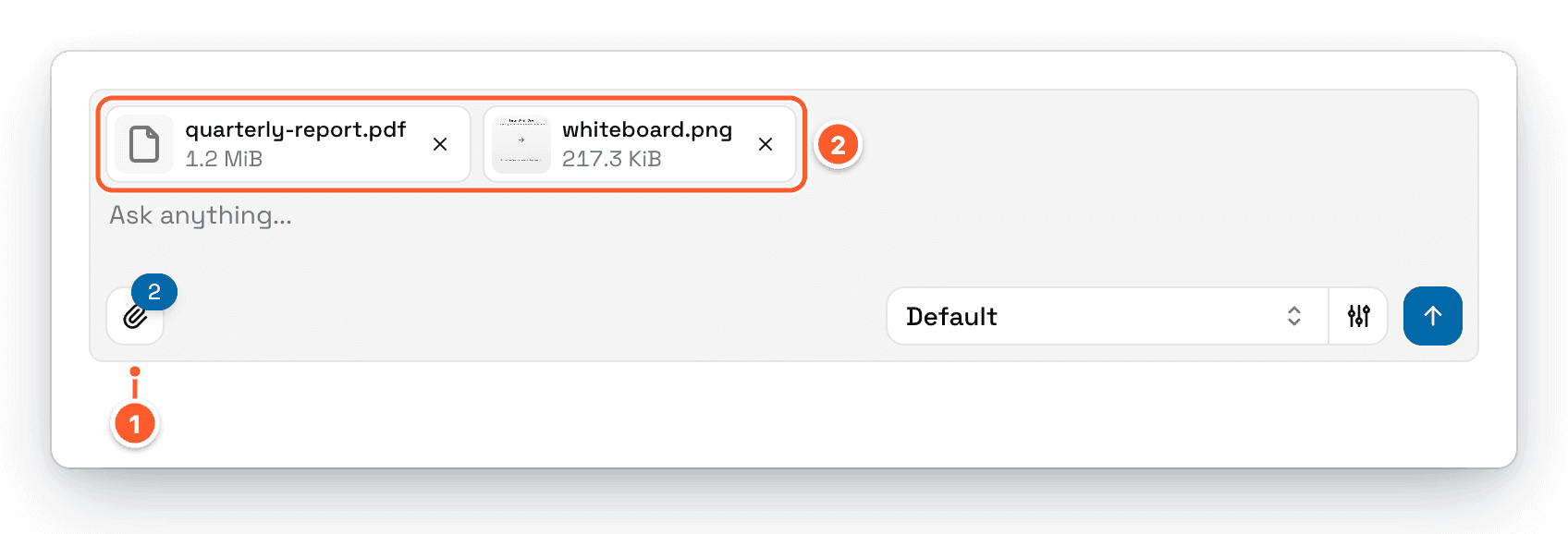
- The paperclip button adds files, and shows how many are attached.
- Attached files appear above your message. Click the x on a file to remove it.
You can attach images, PDFs, Word documents, text and Markdown files, CSV and JSON data, and most code files. Whether a model can read a particular kind of file depends on the model. If a model can't handle a file, AgentOne tells you, for example "Only image files are supported by this model." To find models that accept images or files, use the filters in the model selector.
Attach a past chat
Drag a chat from the sidebar into the message box to give AgentOne a reference to it. Instead of pasting the whole conversation, AgentOne reads only the parts it needs with the Chat History tools, which keeps room in the context window for your actual work.
Stop or Interrupt a Response
While AgentOne is responding, you have two options:
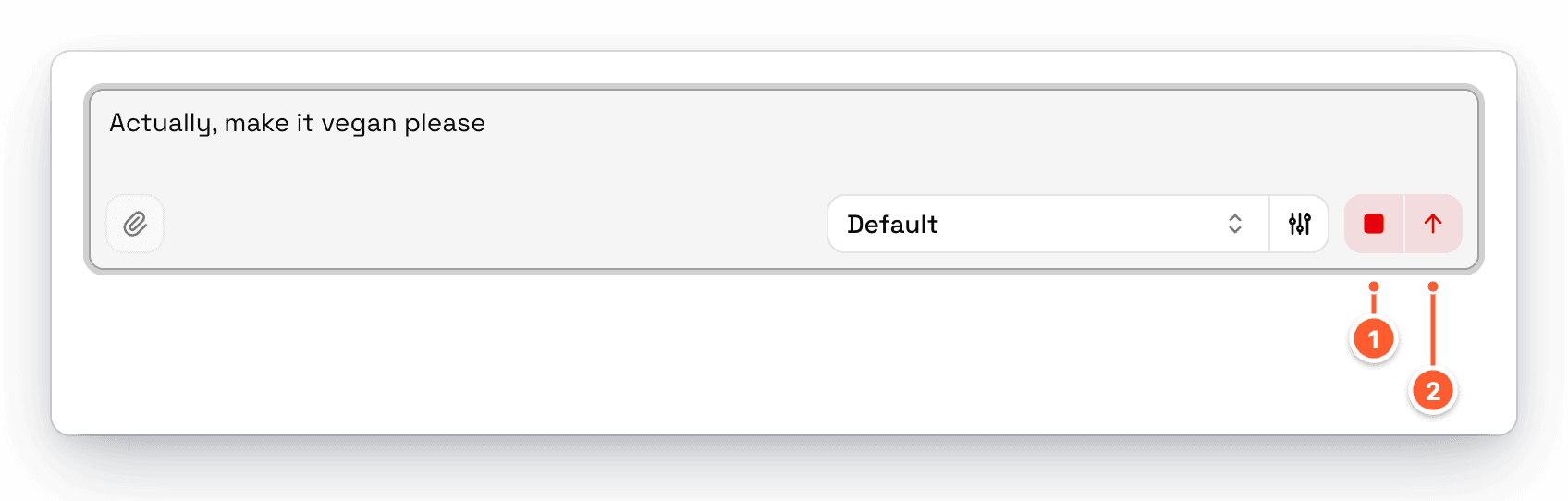
- Stop ends the response right away. You can also press
Shift + Esc. - Interrupt appears in place of Send when you type a new message while AgentOne is still working. It stops the current response and sends your new message, so you can change direction without waiting. You can also press
Cmd + Enteron macOS orCtrl + Enteron Windows and Linux. Change this key inSettings->Chats-> Interrupt Key.
When Something Goes Wrong
If a response fails, for example because of a network problem or a provider error, AgentOne shows the error above the message box with a Resume button. Resume picks up right where the response left off, so you don't lose what was already written. Errors from your own providers include the provider's name, so you can tell where the problem came from.
If AgentOne closed or stopped before replying, you'll see Incomplete Chat with a Resume button.
For help with specific errors, see Troubleshooting Models & Providers.
Notifications
AgentOne can notify you when a response is ready, when it needs your approval to continue, or when it stops because of an error. Click a notification to jump straight to that chat. By default, notifications appear only when the AgentOne window isn't focused. Change this in Settings -> Chats -> Agent Notifications.