Long Chats & Compaction
Learn what a context window is and how AgentOne compacts long chats so they can keep going.
Every AI model has a limited context window, which is how much of a conversation it can see at once. AgentOne keeps long chats working by compacting them: it writes a detailed summary of the conversation so far, then continues from that summary with a fresh context window.
Watch How Full a Chat Is
The usage stats in the top-left of every chat show how much of the model's context window the chat is using. Hover over it for details.
- For your own providers, it also shows the estimated cost of the chat in US dollars, based on the model's published pricing.
- For AgentOne's model, it shows the percentage of the context window used. AgentOne's model uses credits instead of dollars.
Click the arrow next to the stats to collapse or expand them.
Auto-Compact
Auto-Compact is on by default. When a chat reaches 90% of the model's context window, AgentOne compacts it automatically. This also works in the middle of a response, so long tasks with lots of tool calls keep running instead of failing partway through.
To change it for a chat, click the model configuration button next to the model selector:
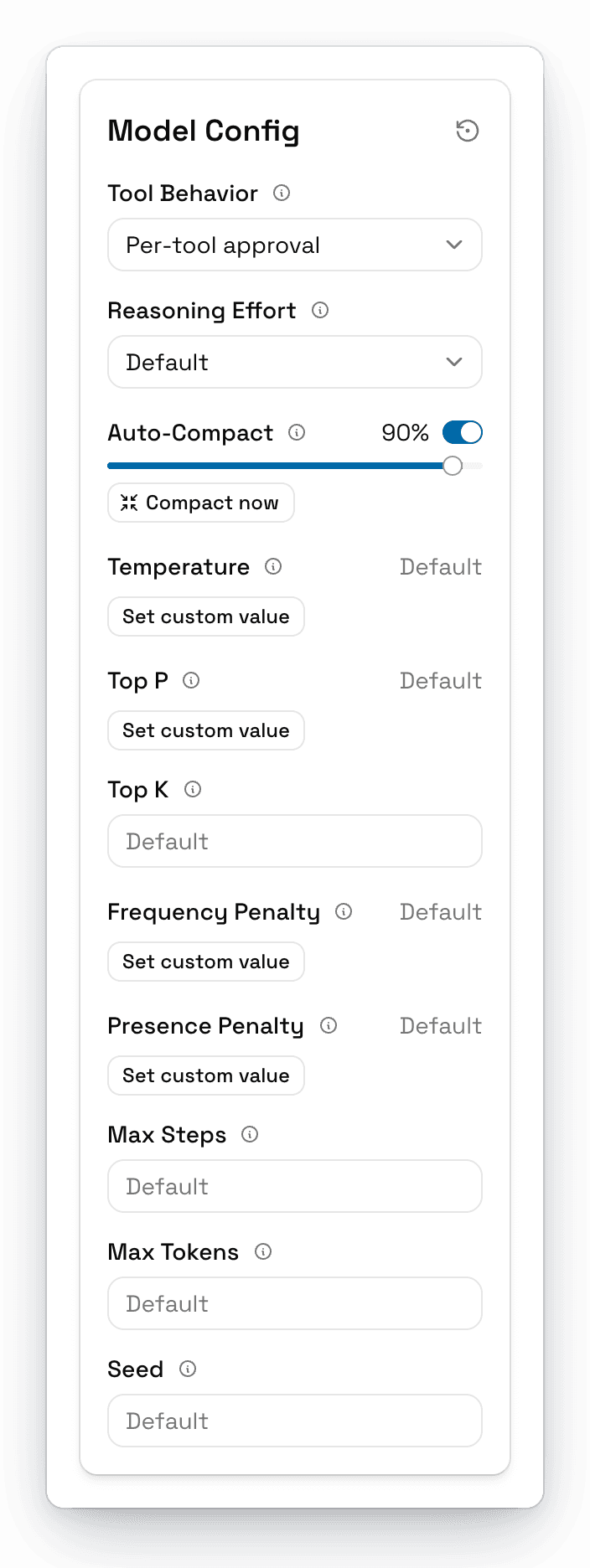
- Turn Auto-Compact off or on.
- Drag the slider to compact earlier or later, anywhere from 5% to 95%.
- Click Compact now to compact right away.
Settings you change in a new, empty chat become the defaults for future chats.
You can't compact while AgentOne is responding or while a tool is waiting for your approval. Compaction also needs the model's context window size, which AgentOne gets from the model list.
See What Was Kept
A compacted chat shows a Conversation compacted divider. Click it to read the summary AgentOne is working from.
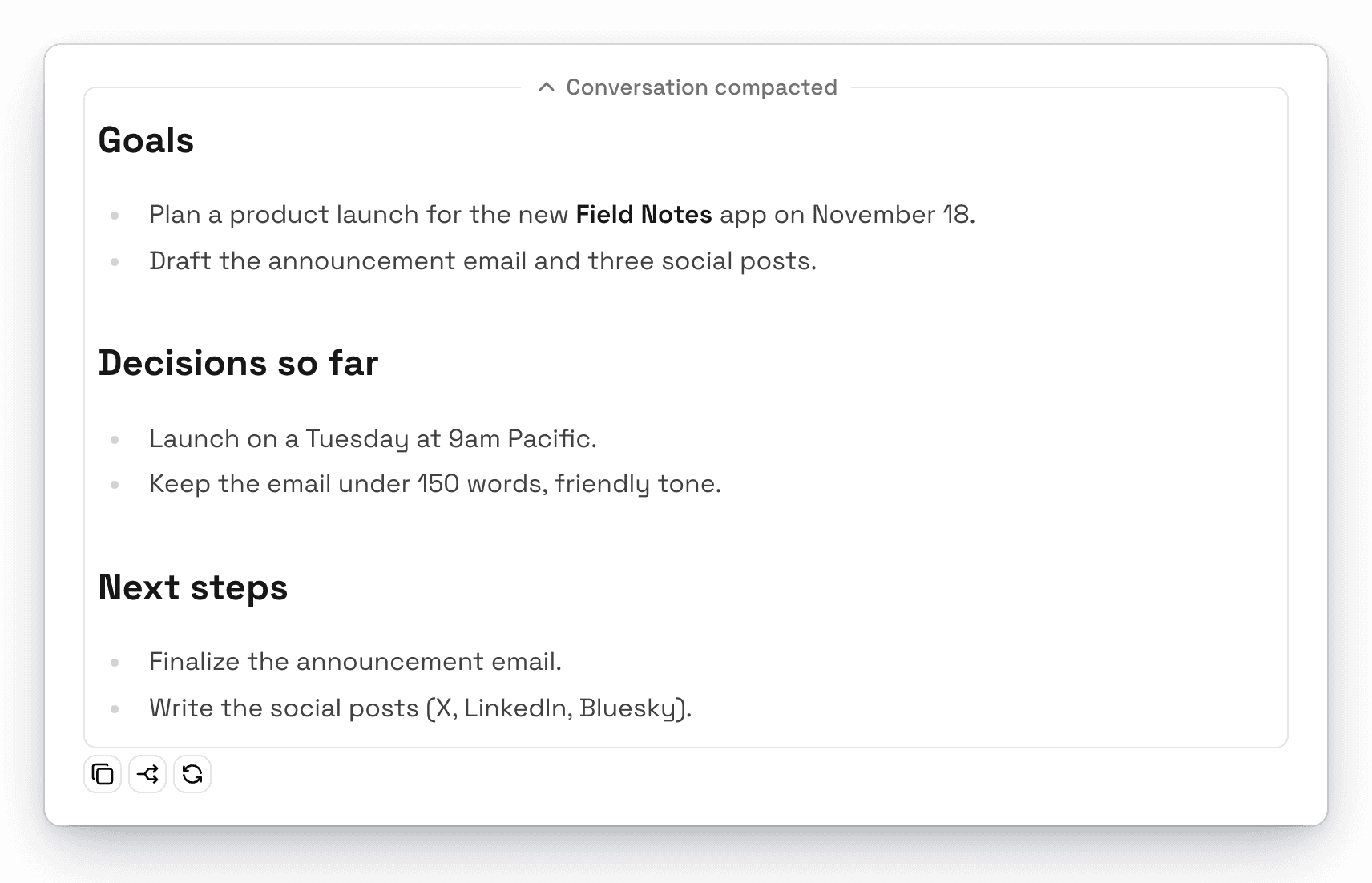
Your earlier messages stay visible in the chat. Only the AI's view of them is replaced by the summary. If you edit or regenerate a message from before the divider, the compaction is undone and the full history comes back.
If Summarizing Fails
If AgentOne can't write a summary in the middle of a response, it uses the Chat History tools to read back through the chat and pick up where it left off, or asks you for the context it needs.
Tips for Long Tasks
- Start a new chat when you switch topics. It's faster, cheaper, and keeps answers focused.
- Drag an old chat into the message box to reference it without pasting the whole thing.
- Pick a model with a larger context window for big documents. The model selector and modeldirectory.dev both show context window sizes.