Responses
How AgentOne shows tables, code, diagrams, callouts, HTML previews, reasoning, and tool activity.
AgentOne formats its responses with Markdown, so you get headings, lists, bold text, links, and tables. It also understands a few richer formats.
Diagrams, Code, and Callouts
Diagrams
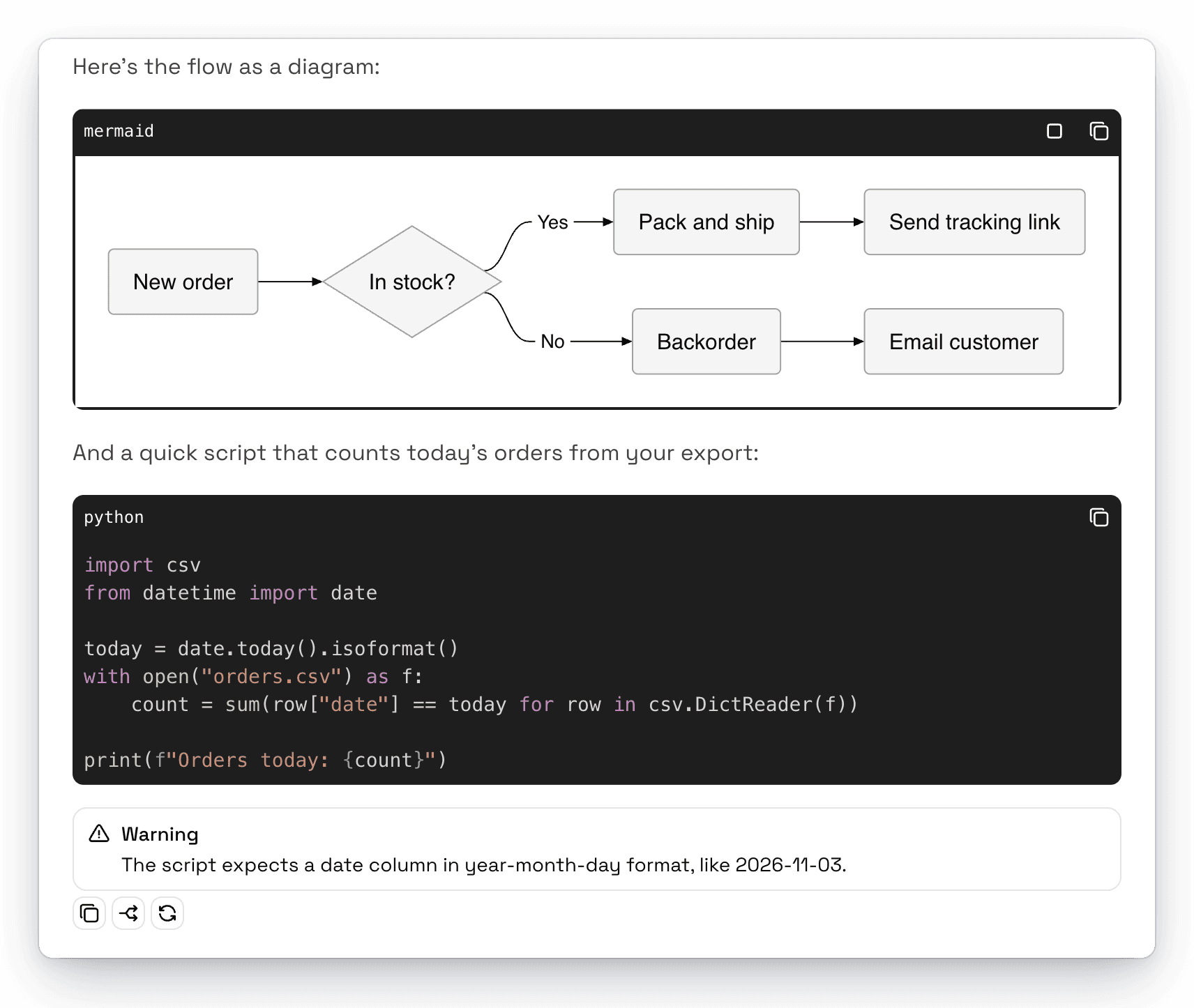
When AgentOne writes a Mermaid code block, it's shown as a diagram. While the code is still being written, you'll see a Generating diagram placeholder. Click the preview button above a diagram to switch back to the code.
Ask for one directly, like "Draw a flowchart of our hiring process."
Code Blocks
Code blocks are syntax highlighted and have a copy button. Very long code blocks switch to plain text to keep the app fast. You can change the limit in Settings -> Performance -> Max Codeblock Characters.
Callouts
AgentOne can highlight important information with GitHub-style callouts: Note, Tip, Important, Warning, and Caution.
HTML Previews
For HTML code blocks, click the preview button to see the page rendered right in the chat. While the code is still being written, AgentOne shows a Generating preview placeholder instead of a half-finished page.
Reasoning
Many models think before they answer. When they do, AgentOne shows a collapsible Reasoning section above the response. Click it to read the model's thought process.
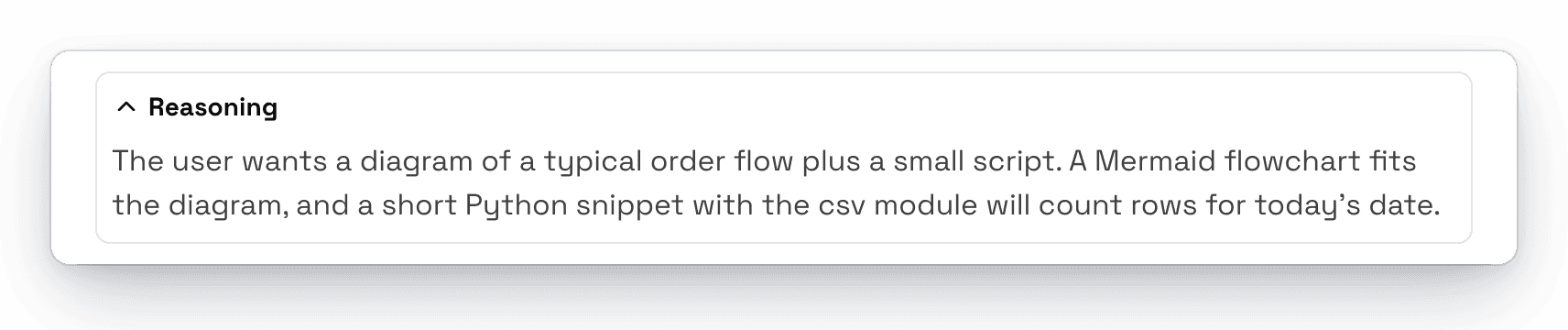
You can control how much a model thinks with Reasoning Effort in the model configuration.
Some models write their reasoning inside <think> tags instead. Turn on Settings -> Chats -> Extract Reasoning from Think Tags to show that text in the Reasoning section, too.
Tool Activity
When AgentOne uses a tool, each step appears in the response, like Found 8 results for "..." or Created ~/Desktop/notes.md. Click a step to see the details, such as the search results or the file it wrote.
If a tool needs your approval, AgentOne pauses and shows Deny and Approve buttons. See Tools & Approvals.
Formatting Options
These settings in Settings -> Chats change how messages look:
- Markdown Rendering chooses which messages show formatting: all messages, only yours, only AgentOne's, or none.
- Fix Streaming Markdown cleans up half-written formatting while a response is still streaming.
In Settings -> Appearance, Markdown Highlighting shows formatting styles as you type in the message box.