Managing Chats
Find, rename, export, branch, and delete chats from the AgentOne sidebar.
All of your chats are listed in the sidebar. They're saved on your computer, so they're there every time you open AgentOne.
Chat Menu
Right-click any chat, or hover over it and click the ⋮ button, to open its menu.
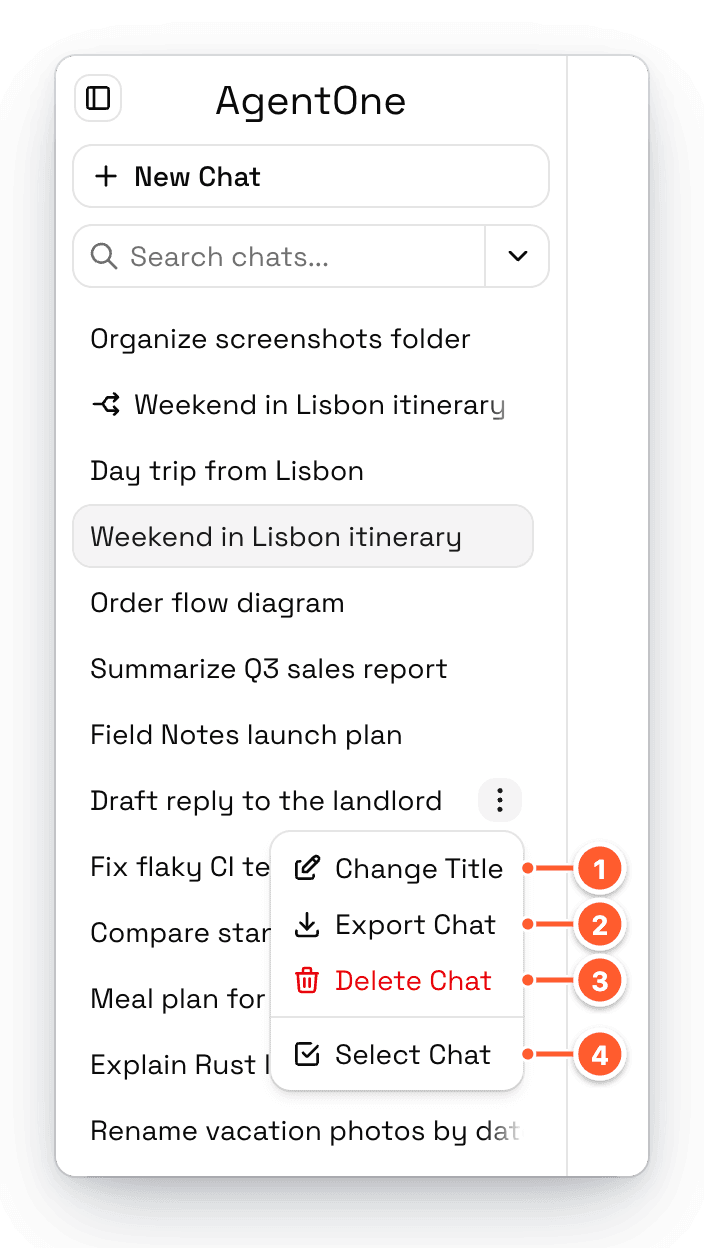
- Change Title renames the chat. In the rename window, click Generate title using AI to have AI write a title for you.
- Export Chat saves the chat as a JSON file. Click Download as JSON and choose where to save it.
- Delete Chat permanently deletes the chat after you confirm. This can't be undone.
- Select Chat starts selection mode so you can export or delete several chats at once.
Search Chats
Type in Search chats... at the top of the sidebar, or press Cmd + K on macOS or Ctrl + K on Windows and Linux. AgentOne searches chat titles and the text of every message, and highlights where your search matched.
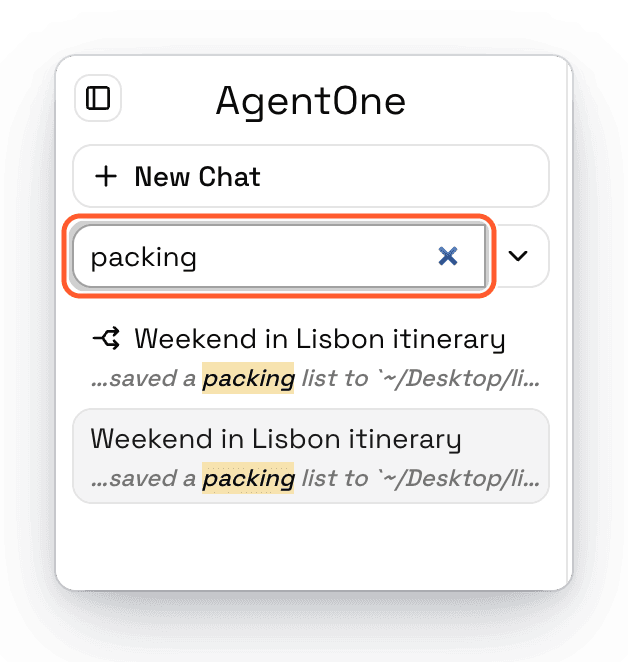
Click the arrow next to the search field for search options:
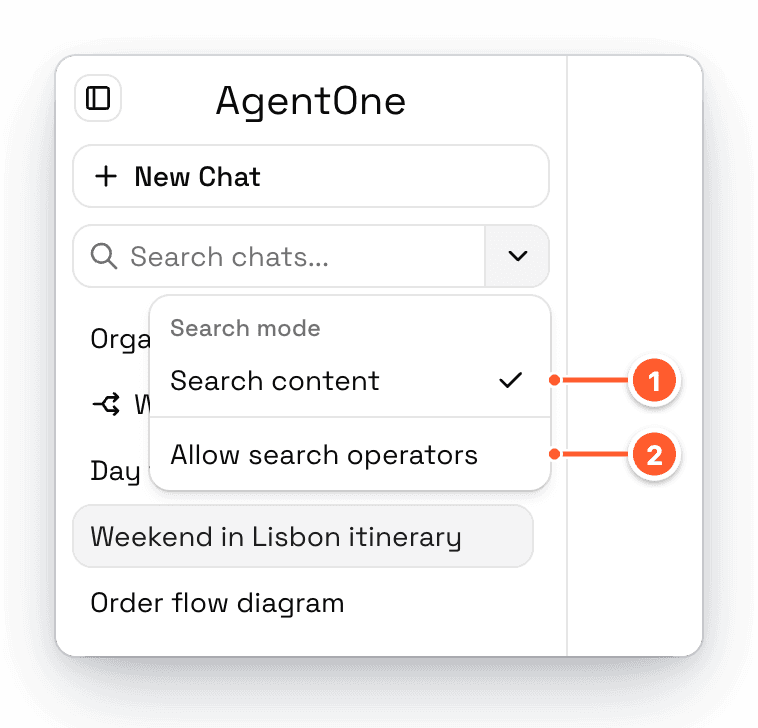
- Search content searches inside messages, not just titles. Turn it off to search titles only.
- Allow search operators lets you use advanced search syntax, like
"exact phrase",OR, andNOT. Leave it off for normal searches.
When the sidebar is collapsed, Cmd/Ctrl + K opens the search in its own window.
Select Several Chats
To export or delete many chats at once, choose Select Chat from a chat's menu, or hold Shift and click a chat.
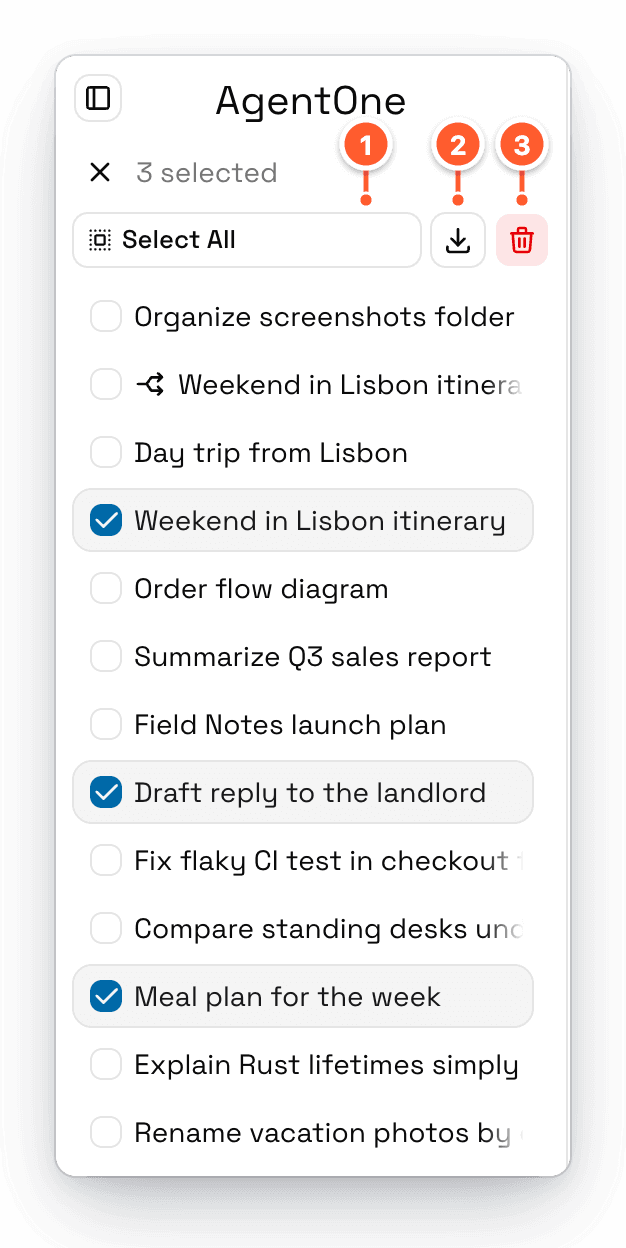
The top of the sidebar shows how many chats are selected. Click a chat to select or deselect it, and click the x to leave selection mode.
- Select All or Deselect All.
- Export saves all selected chats to a single JSON file.
- Delete permanently deletes all selected chats after you confirm.
Sort and Group Chats
By default, the chat you most recently sent a message in is at the top. Change this in Settings -> Chats -> Chat Sort Order:
| Option | Sorts by |
|---|---|
| Recently messaged first | The last time you sent a message (default) |
| Recently active first | Any activity, like new replies or changing the chat's model or settings |
| Newest chats first | When the chat was created |
Turn on Group sidebar chats by time in the same section to split the list into sections like Recent, Last Week, Last Month, and then by month.
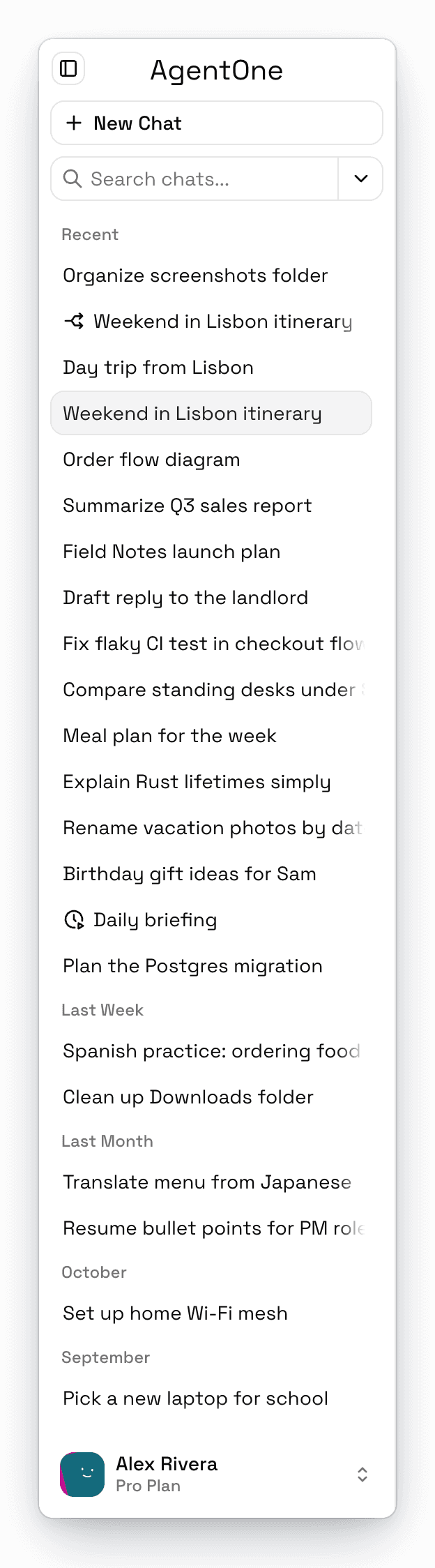
Status Icons
Small icons next to a chat show what's going on without opening it:
- A spinner means AgentOne is still working in that chat.
- A bell means there's a new reply you haven't seen.
- An error icon means the last response failed.
- A split arrow means the chat is a branch. Hover it to see which chat it came from.
- A clock means a scheduled agent started the chat.
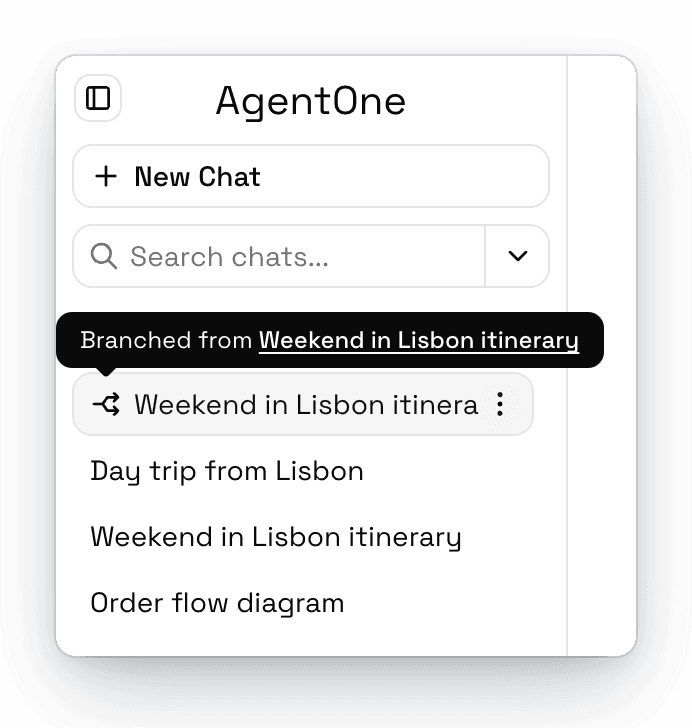
You can hide these with Settings -> Chats -> Chat Status Indicators.
Chat Titles
AgentOne names new chats for you. By default it uses AI to write a short title, and shows the start of your first message until the title is ready. You can change how titles are made in Settings -> Chats -> Titles. See Chat Settings.
Long titles in the sidebar scroll into view when you hover over them.