Chat History
Let AgentOne search and read your past conversations to pick up where you left off.
The Chat History tools let AgentOne search your past chats by keyword and read through them. Ask things like:
- "What did we decide about the trip last week?"
- "Pick up where we left off in the Postgres migration chat."
- "Find the chat where I asked for a sourdough recipe."
AgentOne finds the right chat, then asks to read it.
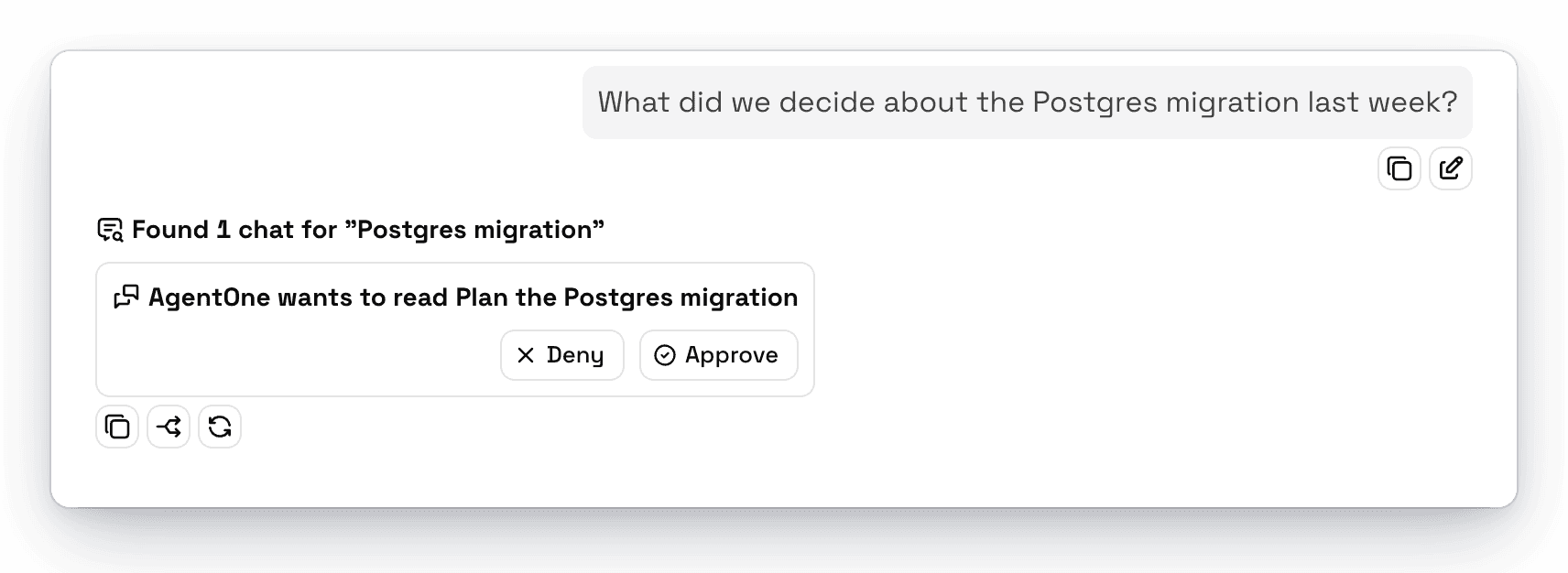
When AgentOne reads a chat, it leaves out the AI's reasoning and summarizes attachments, so it only reads the conversation itself. It also skips tool calls unless it needs them.
Reference a Chat Directly
Drag a chat from the sidebar into the message box to attach it to your message. AgentOne gets a lightweight reference to the chat and reads only what it needs, instead of copying the whole conversation into your message.
Settings
Both tools ask for your approval by default, and the approval card shows which chat AgentOne wants to read. To change this, or turn the tools off, go to Settings -> Tools -> Chat History.
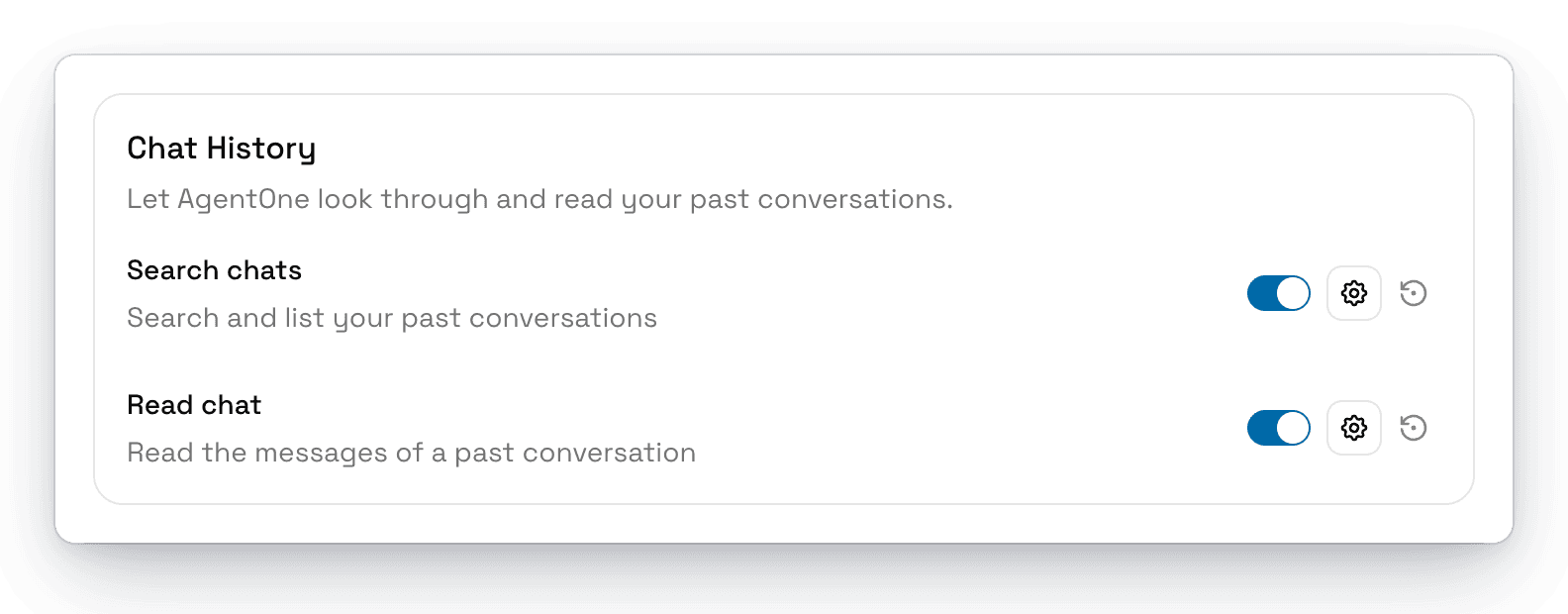
- Search chats has Default Max Results.
- Read chat has Default Read Length (chars) and Max Read Length (chars), which limit how much of a chat AgentOne reads at once.
The Chat History tools also help compaction: if AgentOne can't summarize a long chat, it uses them to read back through the conversation.