Model Metadata
How AgentOne knows about models, and how to add models or correct their details.
AgentOne needs a few details about each model to work well: its display name, context window, maximum output, pricing, and whether it supports tools, images, attachments, and reasoning. These details power the model selector filters, cost estimates, and compaction.
The Model List
AgentOne gets model details from the AI Model Directory, an open-source catalog maintained by the AgentOne team. It tracks over 22,000 model listings across more than 125 providers and is refreshed daily from each provider's own API and docs.
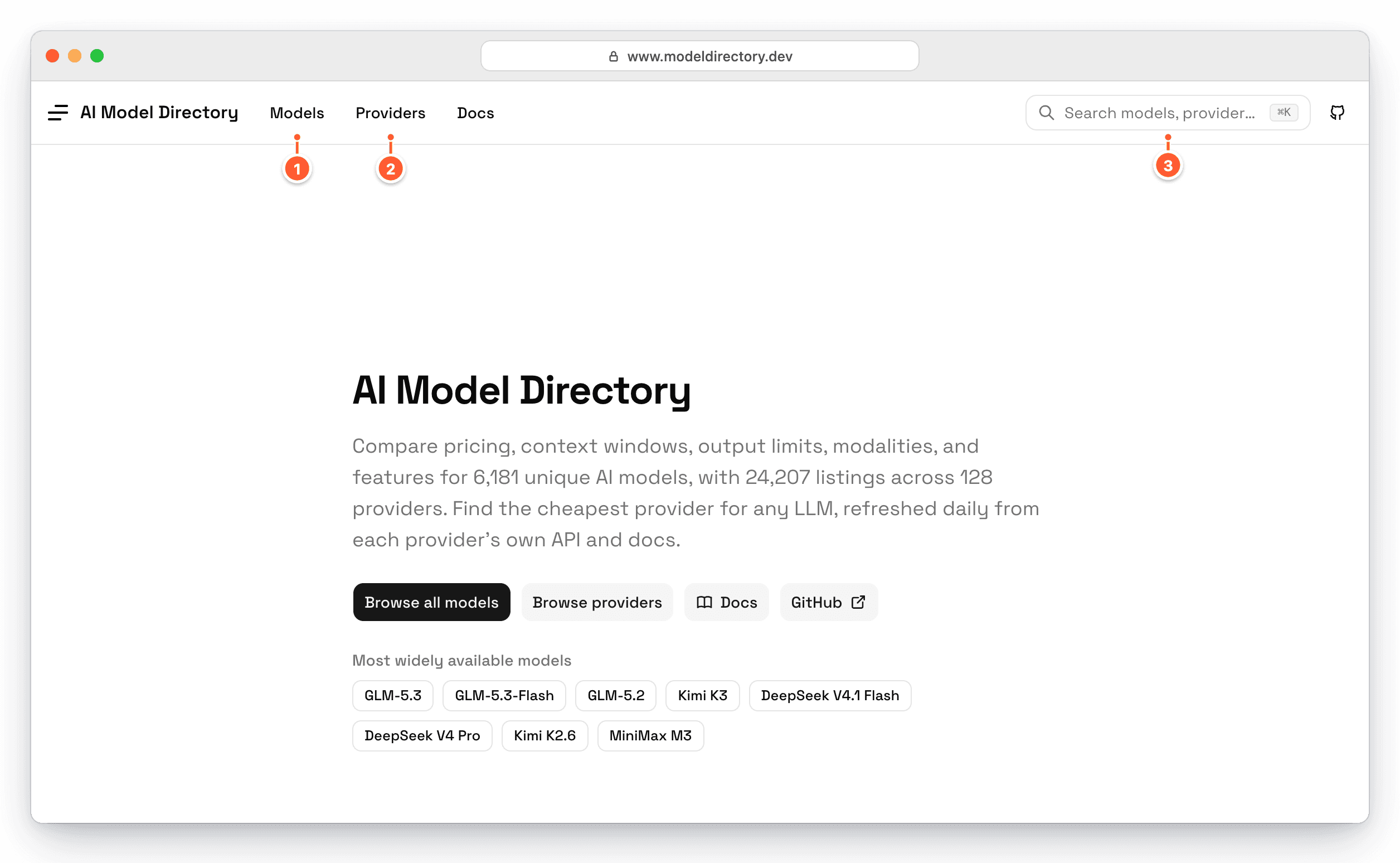
- Models opens a sortable table of every model, with pricing, context, limits, and features.
- Providers lists every provider and its models.
- Search finds any model, provider, or doc page. Each model has a page showing which providers offer it and the cheapest price.
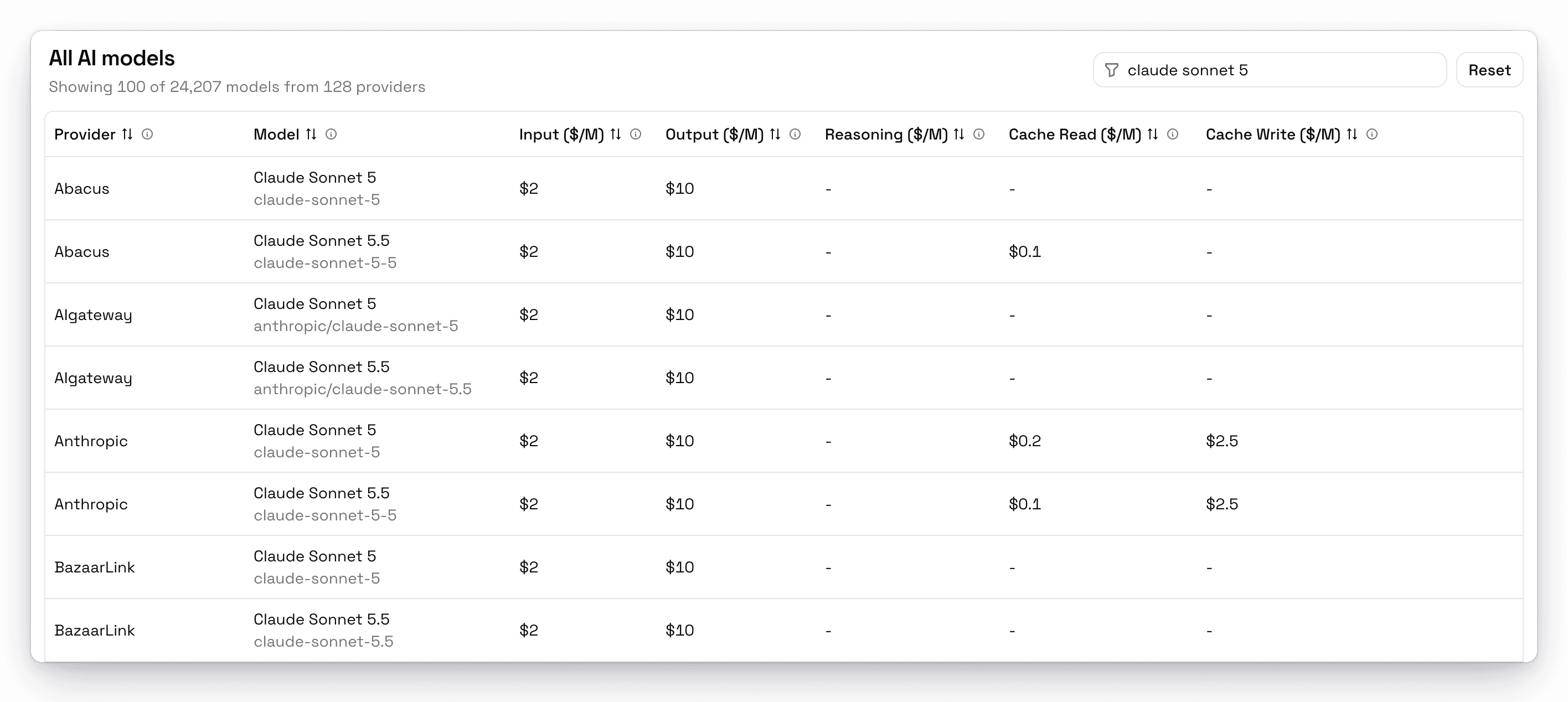
AgentOne downloads the list in the background when it starts and checks for updates every 24 hours. To update it now, go to Settings -> Help & Updates -> Model List and click Update now.
If the list hasn't downloaded yet, you'll see Model list missing in Settings -> Providers, and built-in provider models won't appear in the model selector until it finishes.
Found a mistake?
The model directory is open source. Report incorrect data in the AgentOne Discord or open an issue or pull request on GitHub.
Add a Model
If a provider has a model that isn't in the list yet, add it yourself:
- Open the provider's settings from
Settings->Providers. - Under Models, click Add Model.
- Fill in the details and click Add Model.
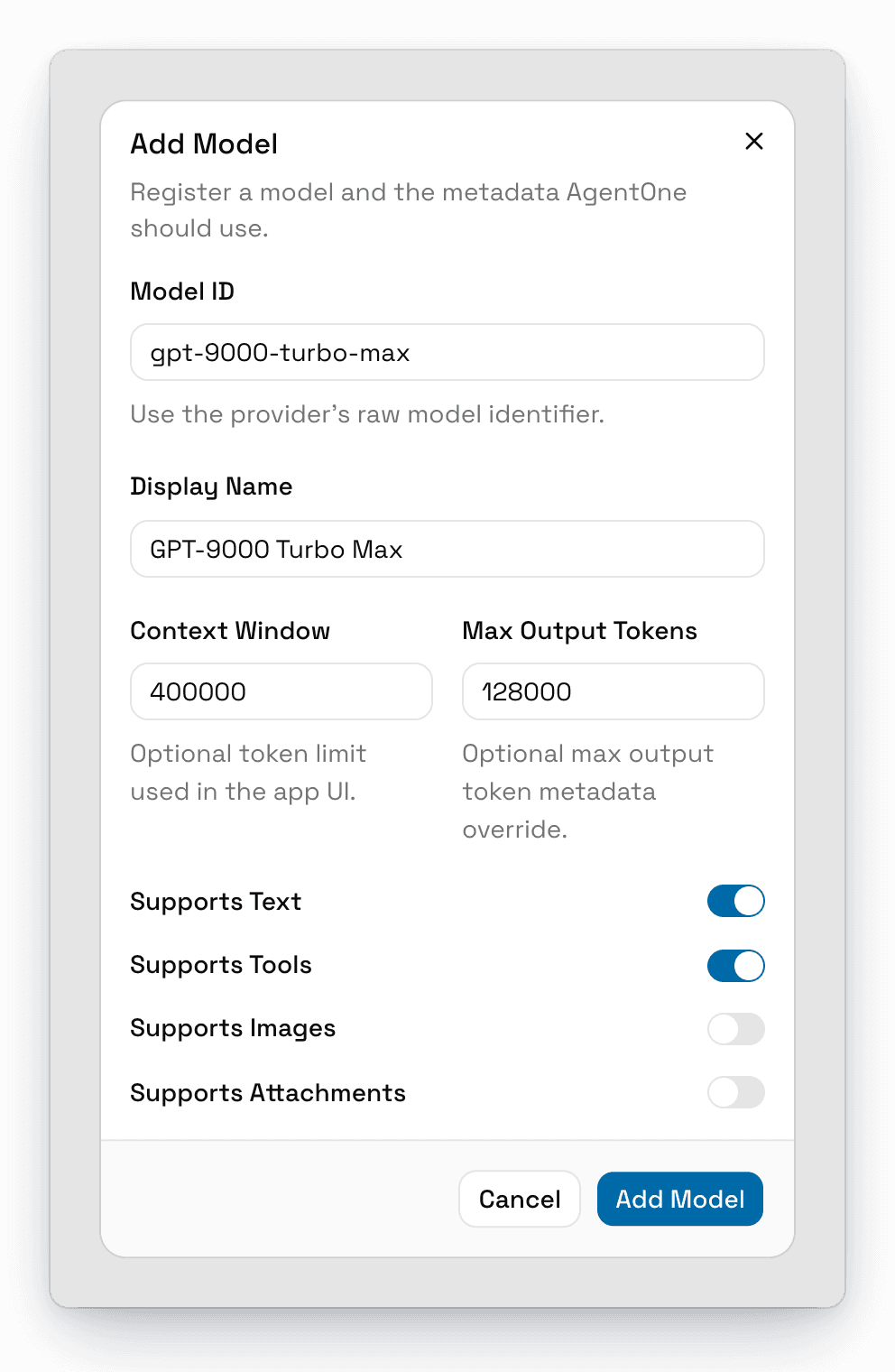
| Field | What to enter |
|---|---|
| Model ID | The provider's exact model ID, like gpt-9000-turbo-max. Required. |
| Display Name | The name to show in the model selector. Optional. |
| Context Window | How many tokens the model can see at once, like 200000. Used for usage stats and compaction. |
| Max Output Tokens | The longest response the model can write, like 8192. |
| Supports Text / Tools / Images / Attachments | What the model can do. Turn on Supports Tools only if the model supports tool calling. |
Override a Model's Details
If a built-in model's details are wrong, you can override them without waiting for the list to update. In the provider's Models list, click the edit button next to the model and change what you need. Overridden models get an Overridden badge, and models you added get a Custom badge. Click the reset button to go back to the built-in details.
If you enter a Model ID that already exists, AgentOne tells you it "matches a built-in model and will override its metadata."