Scheduled Agents
Have AgentOne run a prompt for you automatically on a schedule, like a daily briefing.
A scheduled agent runs a prompt for you on a schedule. Ask it to prepare a daily briefing, check in on a project every week, or tidy up a folder every Friday. When it's time, your computer opens AgentOne, and each run gets its own chat so you can review the result.
Open Scheduled Agents
Open the account menu at the bottom of the sidebar and click Scheduled Agents.
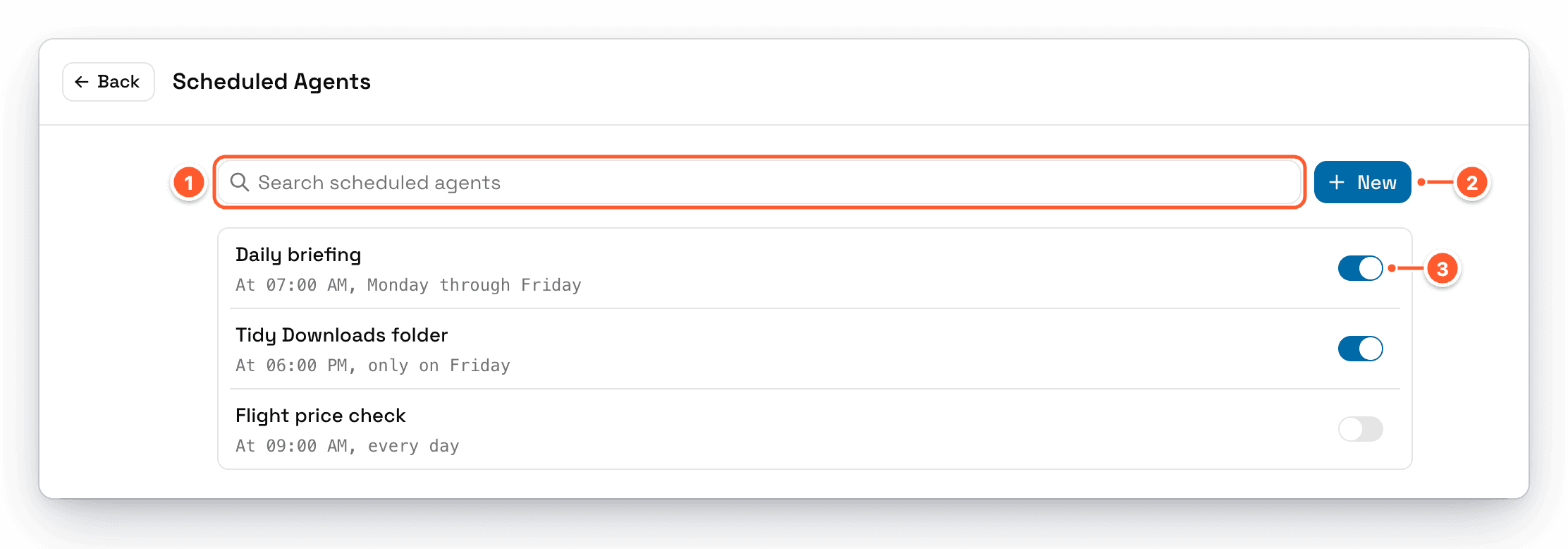
- Search scheduled agents filters the list.
- New creates a scheduled agent.
- Each agent has a switch to pause or resume it. Its schedule is shown in plain language, like "At 07:00 AM, Monday through Friday." Hover the schedule to see the next and last run times.
Create a Scheduled Agent
Click New.
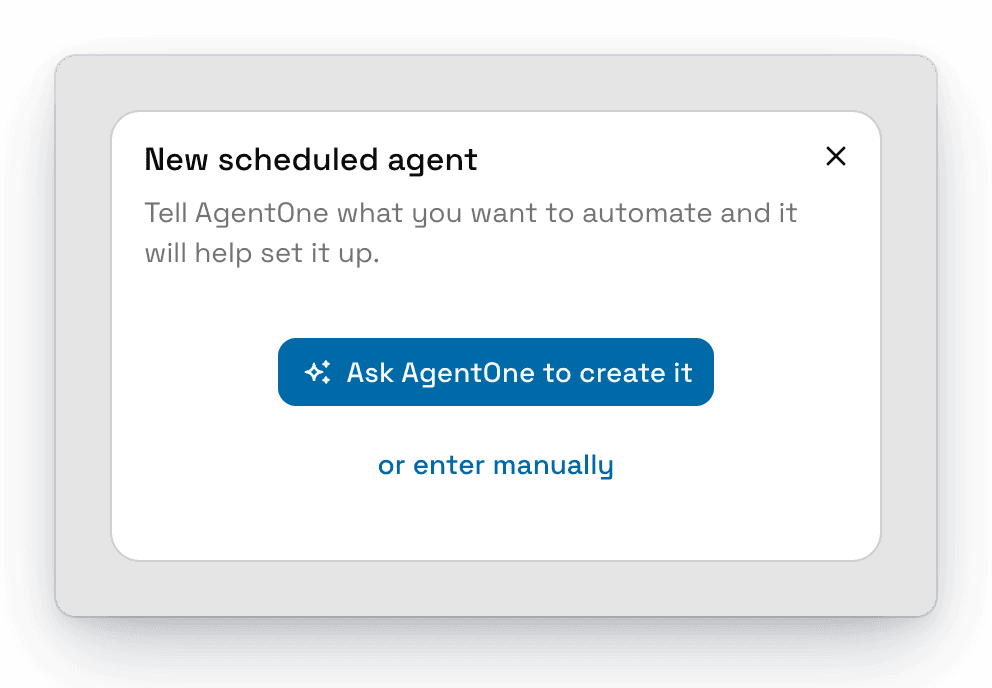
Click Ask AgentOne to create it. AgentOne opens a new chat, asks a few questions about what you want, and then creates the scheduled agent for you. It asks for your approval before saving it.
You can also just ask from any chat, for example:
Every weekday at 7am, give me a short briefing with the weather in Portland and the top tech headlines.Edit, Pause, or Delete
Click an agent in the list to expand it, change any field, and click Save.
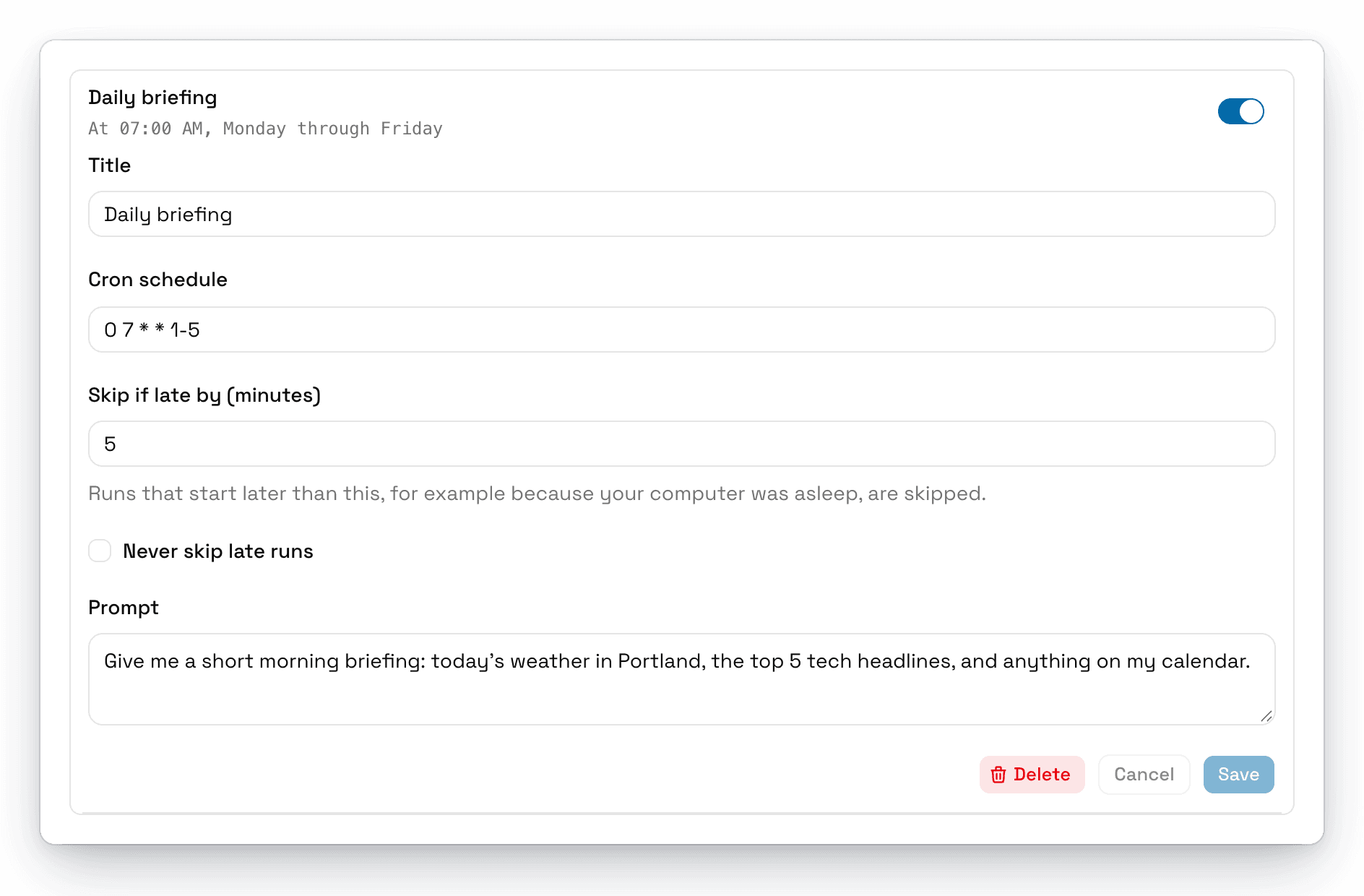
- Use the switch next to an agent to pause or resume it.
- Click Delete to remove it. Chats it already created stay in your sidebar.
You can also ask AgentOne to list, change, pause, or delete your scheduled agents in any chat.
How Runs Work
When a scheduled agent is due, your operating system's scheduler opens AgentOne (or brings it to the front) and AgentOne:
- Starts a new chat.
- Sends the agent's prompt using your default model for new chats.
- Runs it like any other chat, including asking for approvals.
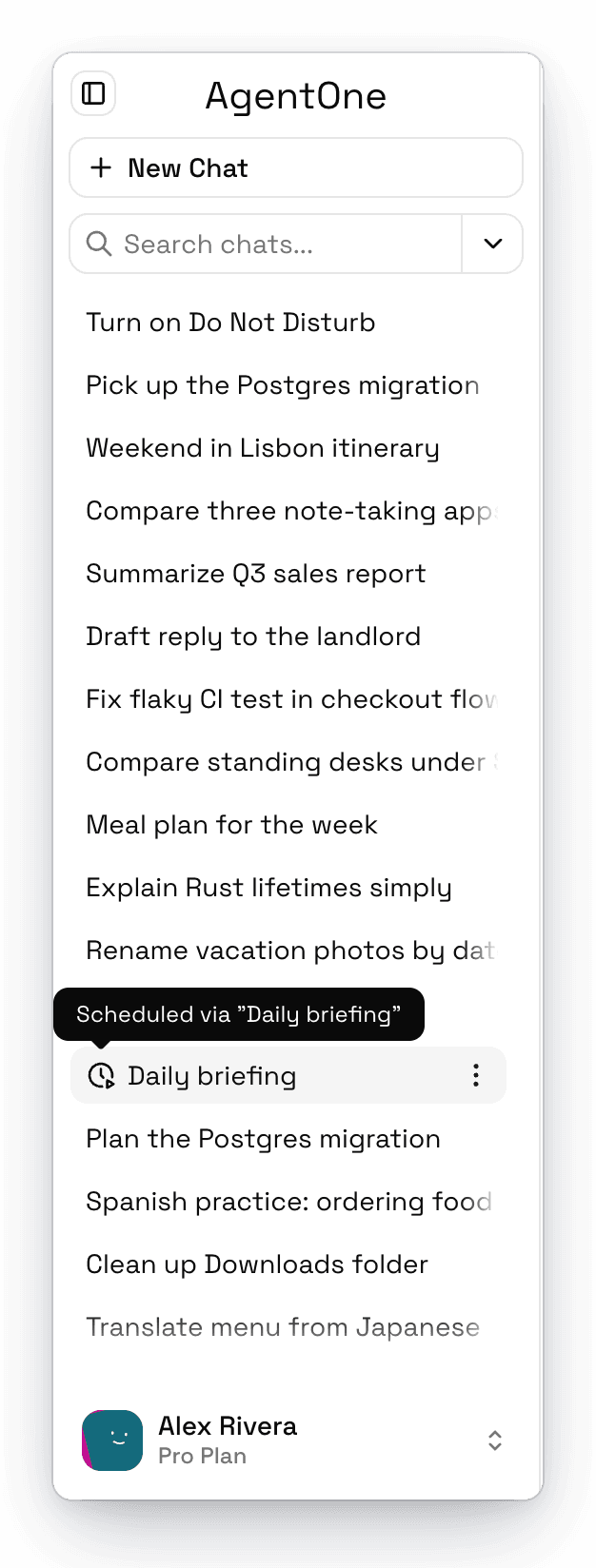
Chats started by a scheduled agent have a clock icon in the sidebar. Hover it to see which agent started the chat.
Your computer needs to be on
Scheduled agents run on your device. If your computer is off or asleep when an agent is due, the run starts when it wakes up, unless it's too late. See Late Runs.
Approvals still apply
If the prompt uses tools that need approval, the run pauses until you approve them. For agents that run while you're away, use tools that don't need approval, or change Tool Behavior for new chats.
Late Runs
If your computer was asleep or AgentOne was closed when a run was due, AgentOne skips the run if it would start more than 5 minutes late. That way you don't get a "morning briefing" in the afternoon.
To change this, edit the agent and set Skip if late by (minutes), or check Never skip late runs to always run, no matter how late.
Cron Schedules
The schedule uses standard five-part cron syntax in your local time zone: minute, hour, day of month, month, and day of week.
| Schedule | Means |
|---|---|
0 7 * * * | Every day at 7:00 AM |
0 7 * * 1-5 | Weekdays at 7:00 AM |
30 17 * * 5 | Fridays at 5:30 PM |
0 9 1 * * | The 1st of every month at 9:00 AM |
0 */4 * * * | Every 4 hours |
Not sure how to write one? Ask AgentOne to set it up for you, and describe the schedule in plain words.
Where Scheduled Agents Live
Scheduled agents are stored on your computer and registered with your system's scheduler: launchd on macOS, Task Scheduler on Windows, and systemd user timers on Linux. They don't sync between devices. See Troubleshooting Scheduled Agents if a run doesn't start.