Computer Use
Let AgentOne see and use the other apps on your Mac or Windows PC.
With Computer Use, AgentOne can see and use the other apps on your computer, like a person at the keyboard. Ask it to fill in a form, click through a settings screen, or pull information out of a window, and it will find the app, read what's on screen, and act on it.
Computer Use works on macOS and Windows. It isn't available on Linux yet.
The Two Tools
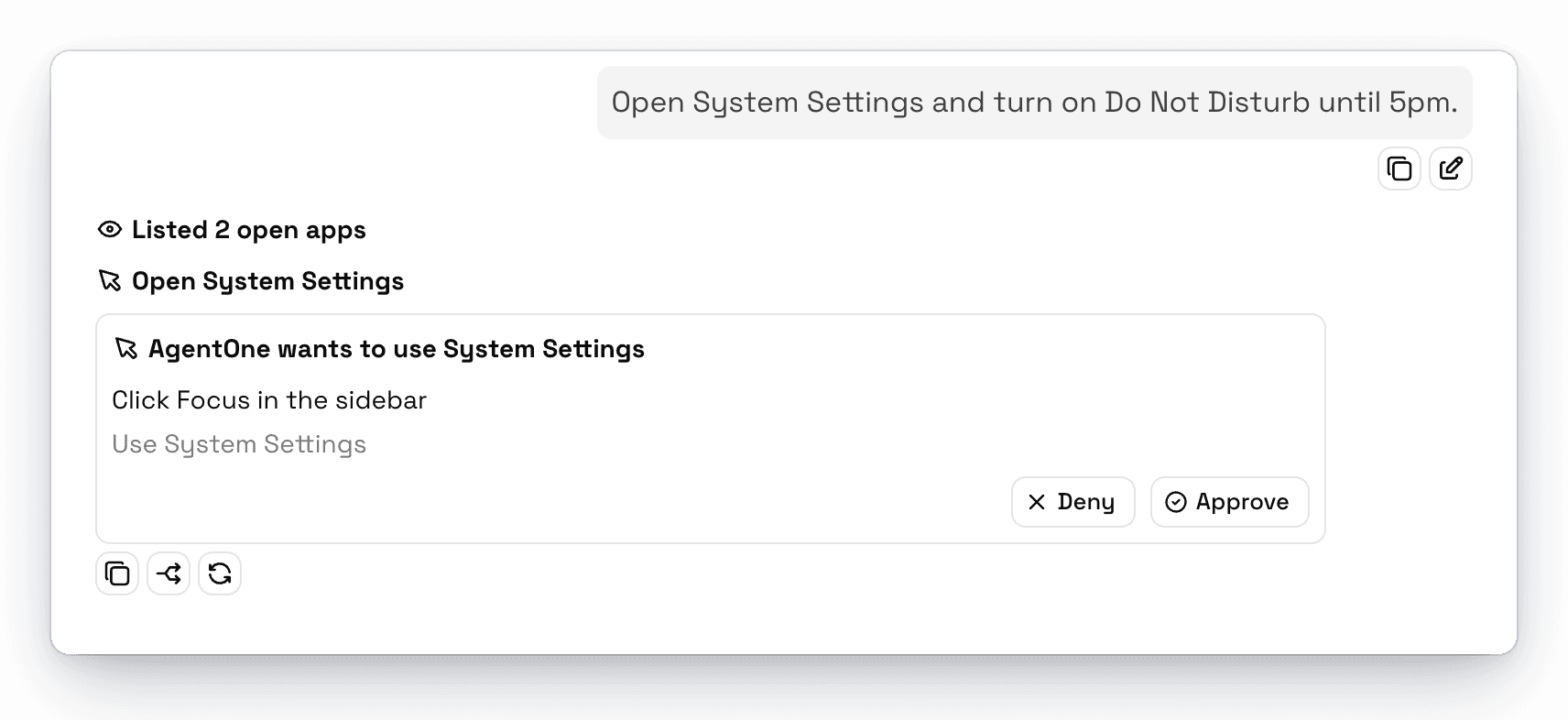
- See apps finds your open and installed apps and reads what's on screen in them. It can include a screenshot so the model can see the window.
- Use apps opens apps and clicks, types, presses keys, scrolls, and drags in them.
Both ask for your approval by default. Each approval card says which app AgentOne wants to use and what it's about to do, like "Click Focus in the sidebar."
Set Up on macOS
macOS needs two permissions before AgentOne can see and control other apps. You can check and grant both from AgentOne:
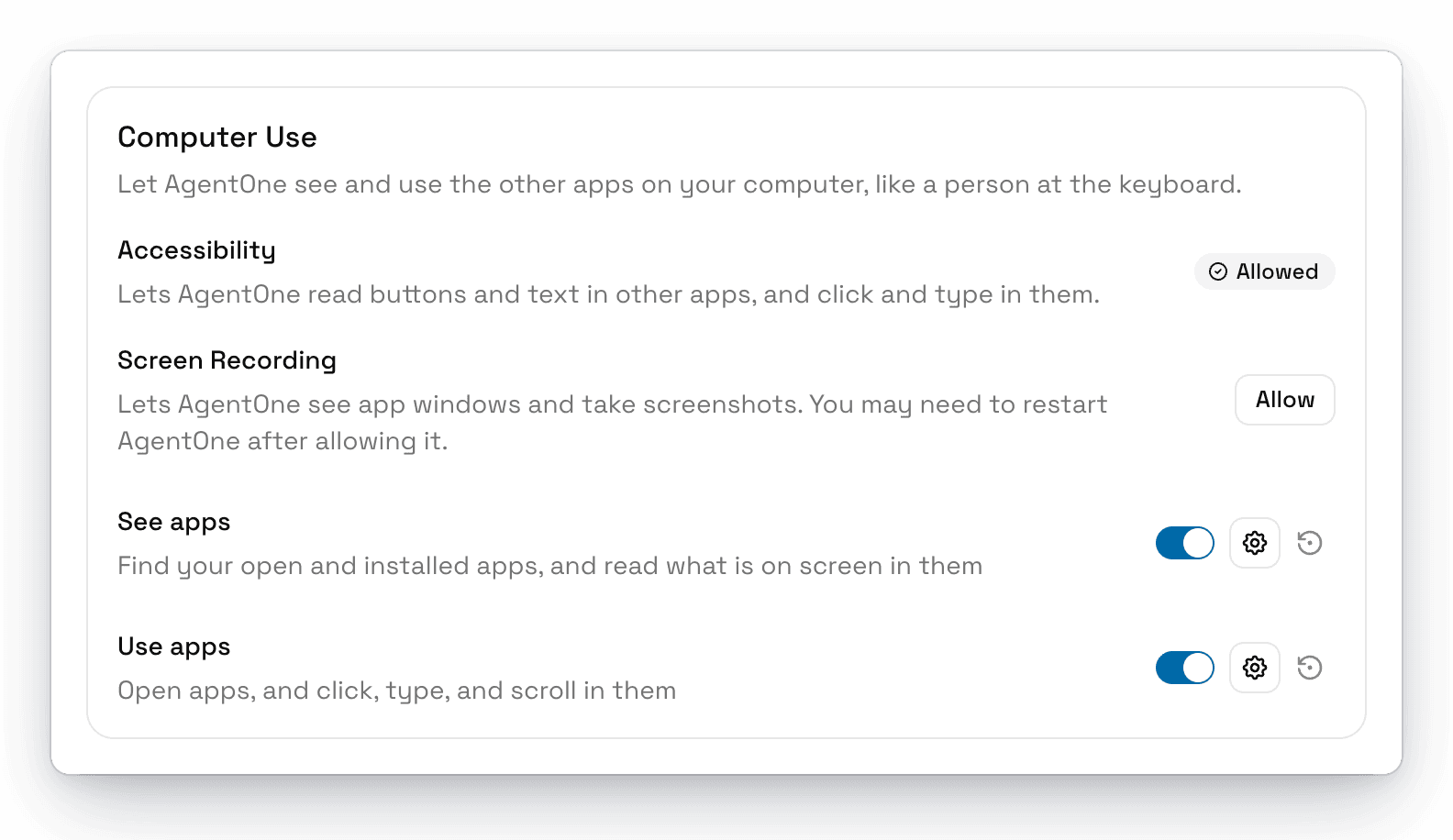
Allow Accessibility
Next to Accessibility, click Allow. macOS opens System Settings -> Privacy & Security -> Accessibility. Turn on AgentOne.
This lets AgentOne read buttons and text in other apps, and click and type in them.
Allow Screen Recording
Next to Screen Recording, click Allow, then turn on AgentOne in Privacy & Security -> Screen & System Audio Recording.
This lets AgentOne see app windows and take screenshots. You may need to quit and reopen AgentOne after allowing it.
Check that both show Allowed
Back in AgentOne, both permissions should show Allowed. AgentOne checks again whenever you switch back to the app.
On Windows, no extra permissions are needed.
Tips
- Name the app. "In Safari, open my bank's website and..." is clearer than "open my bank."
- Keep an eye on it. Watch the approval cards, and use Deny if a step doesn't look right.
- Avoid sensitive actions. Don't ask AgentOne to enter passwords or payment details into other apps.
Turn Computer Use Off
Turn off See apps and Use apps in Settings -> Tools -> Computer Use. You can also remove AgentOne from Accessibility and Screen Recording in macOS System Settings at any time.