Custom Providers
Connect any OpenAI-compatible API, like a self-hosted vLLM server or a company gateway.
If a provider isn't built in, but it has an OpenAI-compatible API, you can add it as a custom provider. This works with self-hosted servers like vLLM, LiteLLM, and llama.cpp, and with company AI gateways.
Add a Custom Provider
Open the custom provider form
Go to Settings -> Providers -> Custom, click Add Provider, and choose OpenAI Compatible.
Fill in the details
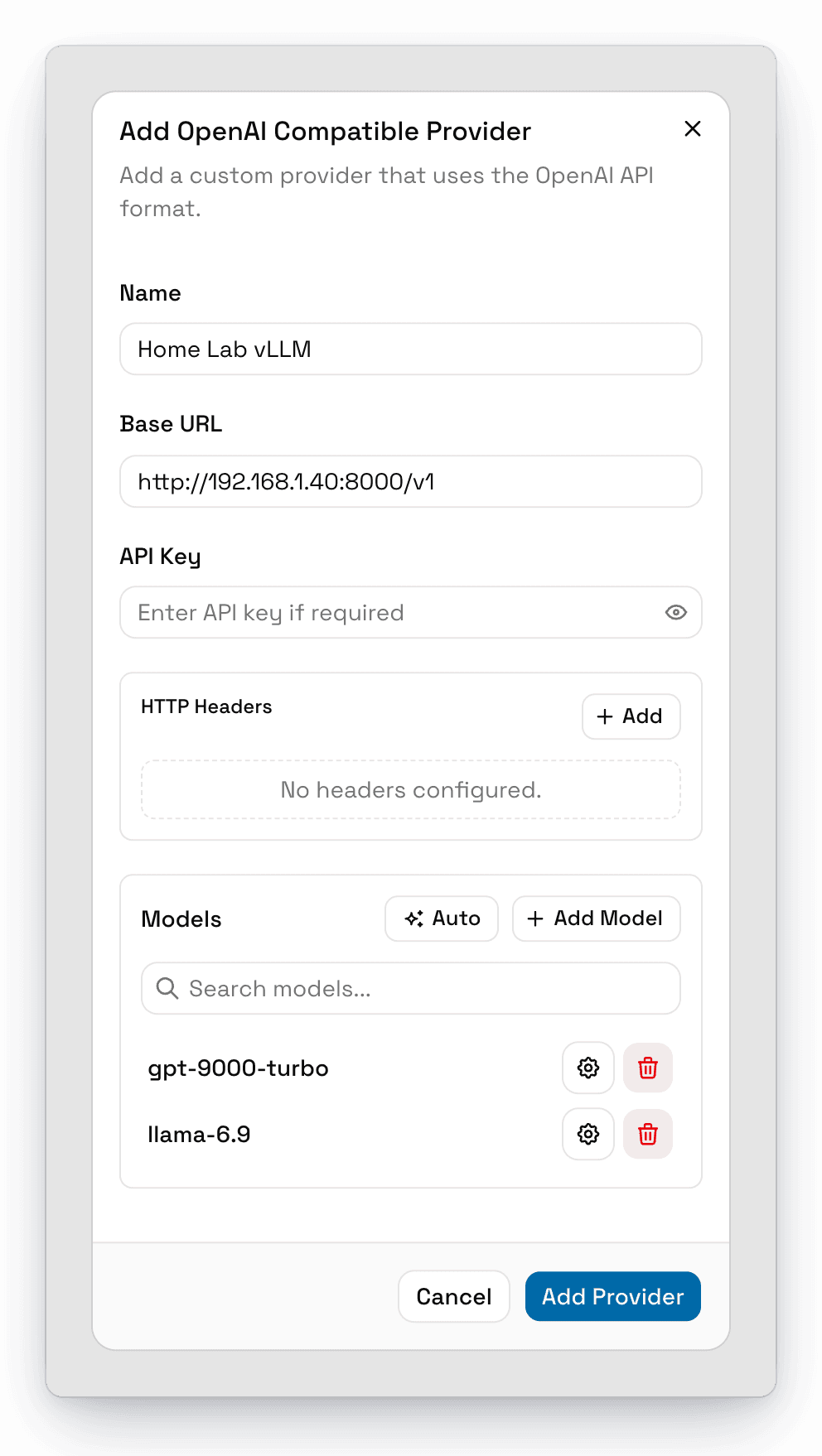
- Name: what the provider is called in the model selector.
- Base URL: the API's base URL, usually ending in
/v1, likehttp://192.168.1.40:8000/v1. - API Key: only if your API needs one.
- HTTP Headers: any extra headers your API needs.
Add models
Click Auto to fetch the model list from your API's /models endpoint, or click Add Model to add models by ID.
After fetching, you can edit each model's details, like its display name, context window, and whether it supports tools and images. See Model Metadata.
Save
Click Add Provider. The provider and its models appear in the model selector.
Edit or Delete a Custom Provider
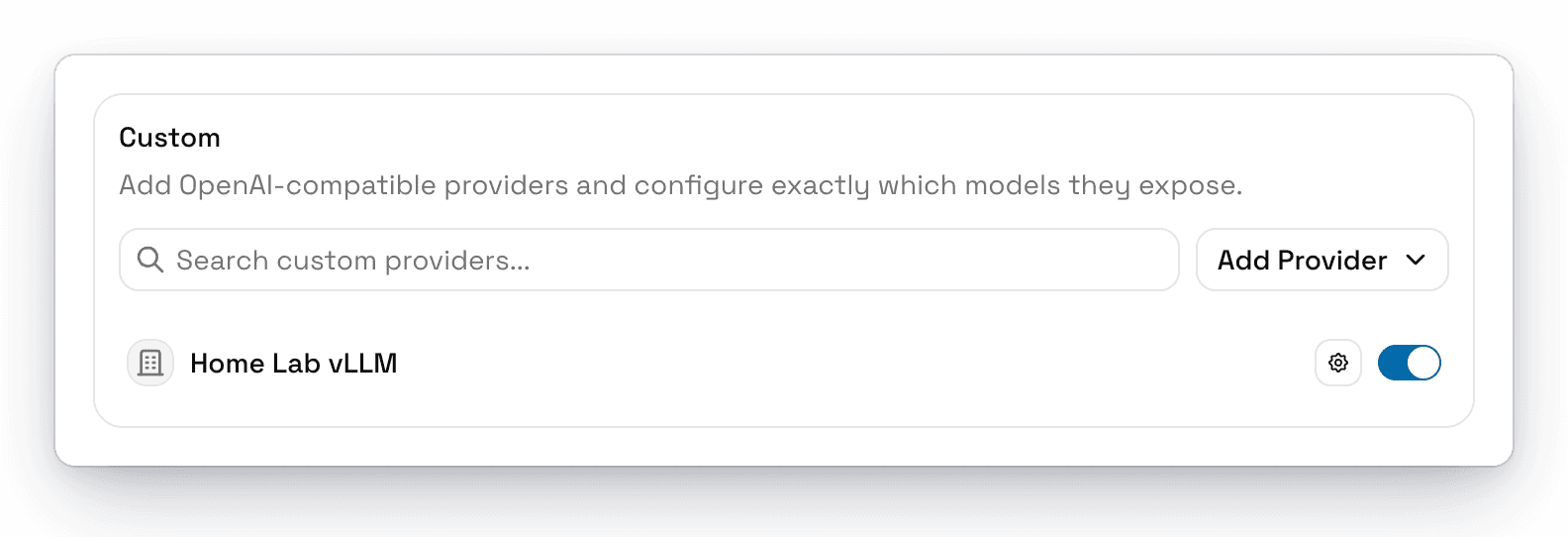
Click the custom provider in Settings -> Providers -> Custom to change its name, URL, headers, or models. To remove it, click Delete Provider and confirm.
Custom providers stay on the computer you set them up on and don't sync.
Tips
- If your server needs a path that isn't
/v1, include it in the base URL. - Turn on Supports Tools only for models that really support tool calling. Otherwise the model may answer with broken tool requests.
- For providers that are already built in, like OpenRouter or Groq, use the built-in provider instead. It comes with model details and pricing.