Linux Setup Guide
Install AgentOne on Linux with an AppImage, a .deb or .rpm package, the Snap Store, or the AUR.
AgentOne runs on 64-bit (x86_64) Linux. Pick the option that fits your distribution:
| Option | Best for | Updates |
|---|---|---|
| AppImage | Any distribution, no installation needed | Built-in updater |
.deb package | Debian, Ubuntu, Linux Mint, Pop!_OS | Built-in updater |
.rpm package | Fedora, RHEL, openSUSE | Built-in updater |
| Snap Store | Any distribution with snap support | Snap updates it automatically |
| AUR | Arch Linux, Manjaro, EndeavourOS | Your AUR helper |
Download from agent-one.dev
The AppImage, .deb, and .rpm downloads are on the download page:
https://www.agent-one.dev/download
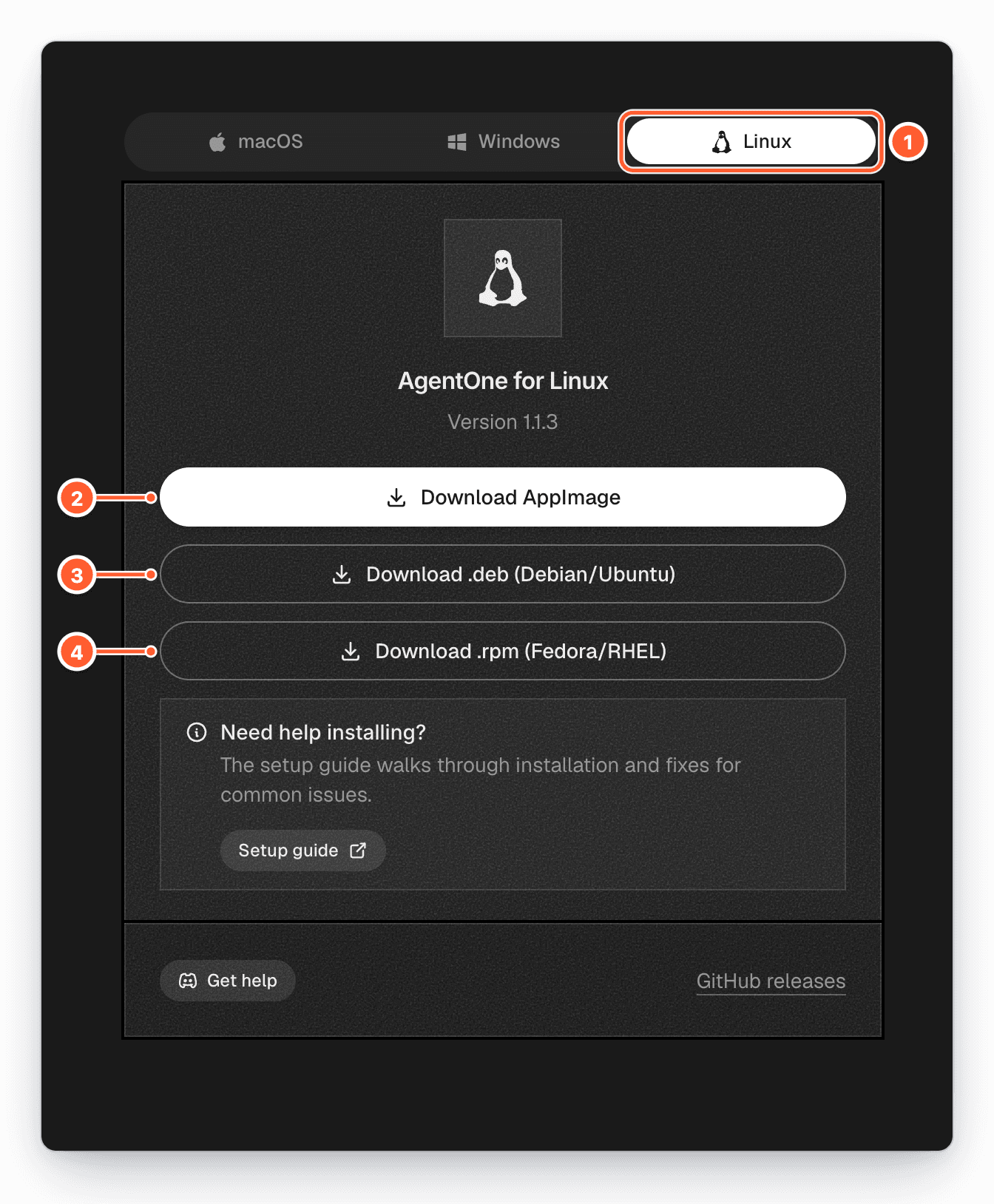
- The Linux tab.
- Download AppImage, which works on almost any distribution.
- Download .deb (Debian/Ubuntu) for Debian-based distributions.
- Download .rpm (Fedora/RHEL) for Fedora, RHEL, and openSUSE.
The same files are attached to every release on GitHub. Look for the release with the green Latest badge and expand Assets.
AppImage
The AppImage runs without installing anything.
Download the AppImage
Click Download AppImage on the download page.
Make it executable
Open a terminal in the folder you downloaded it to (usually ~/Downloads) and run:
chmod +x AgentOne_*.AppImageYou can also right-click the file in your file manager, open Properties, and turn on Allow executing file as program.
AppImage won't start?
Some distributions need FUSE to run AppImages. On Ubuntu 22.04 and newer,
install it with sudo apt install libfuse2t64 (or libfuse2 on older
releases).
Debian and Ubuntu
Download the package
Click Download .deb (Debian/Ubuntu) on the download page.
Install it
Double-click the file to open it in your software center, or install it from a terminal:
sudo apt install ./AgentOne_*.debLaunch AgentOne
Open AgentOne from your application menu, or run agent-one in a terminal.
Fedora and RHEL
Download the package
Click Download .rpm (Fedora/RHEL) on the download page.
Launch AgentOne
Open AgentOne from your application menu, or run agent-one in a terminal.
Snap Store
AgentOne is on the Snap Store. Search for AgentOne in your app store, or install it from a terminal:
sudo snap install agent-oneThen launch AgentOne from your application menu or run agent-one. Snap keeps AgentOne up to date automatically.
Arch Linux (AUR)
Install the agent-one-bin package with your favorite AUR helper:
yay -S agent-one-binor:
paru -S agent-one-binUpdate AgentOne the same way you update other AUR packages.
Troubleshooting
AgentOne doesn't show up in my application menu after installing the AppImage
AppImages aren't installed, so they don't add a menu entry by themselves. Use a tool like Gear Lever or AppImageLauncher to integrate it, or switch to the .deb, .rpm, Snap, or AUR package.
AgentOne can't save my API keys
AgentOne stores API keys in your system keyring through the Secret Service (provided by GNOME Keyring or KWallet). If no keyring is available, AgentOne saves keys to a local file instead and moves them into the keyring once one is available. If keys don't persist, install gnome-keyring (or enable KWallet) and restart AgentOne.
Computer Use isn't available
Computer Use works on macOS and Windows for now. It isn't available on Linux yet.
Notifications don't appear
Make sure notifications are enabled for AgentOne in your desktop environment's settings, and check Agent Notifications in AgentOne.
Other Problems
Having a different issue? Join our Discord server for live support!