Updating AgentOne
How AgentOne updates itself, how to check for updates, and where to find release notes.
AgentOne checks for updates each time it starts. When a new version is available, you'll see an Update Available window.
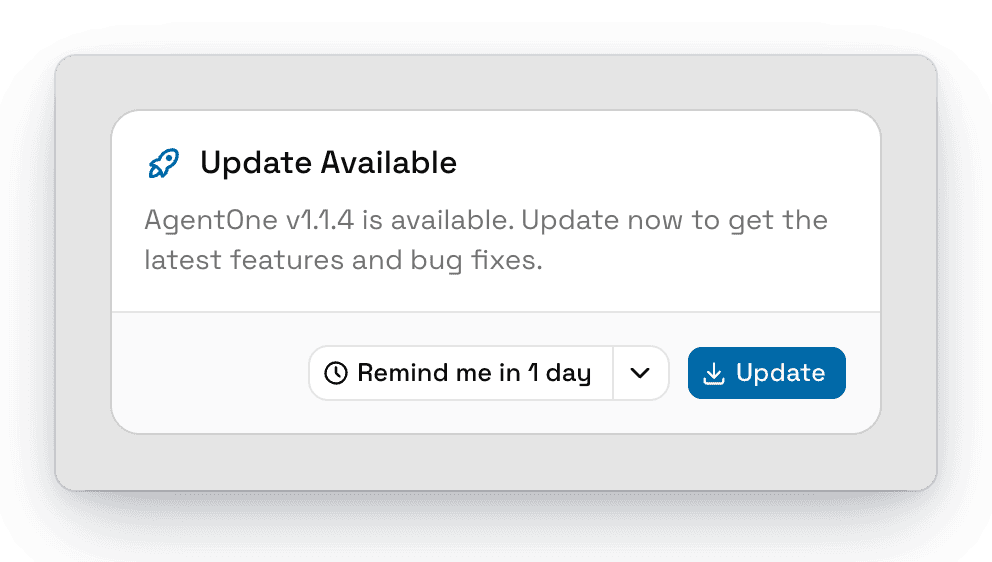
- Click Update to go to the update controls in
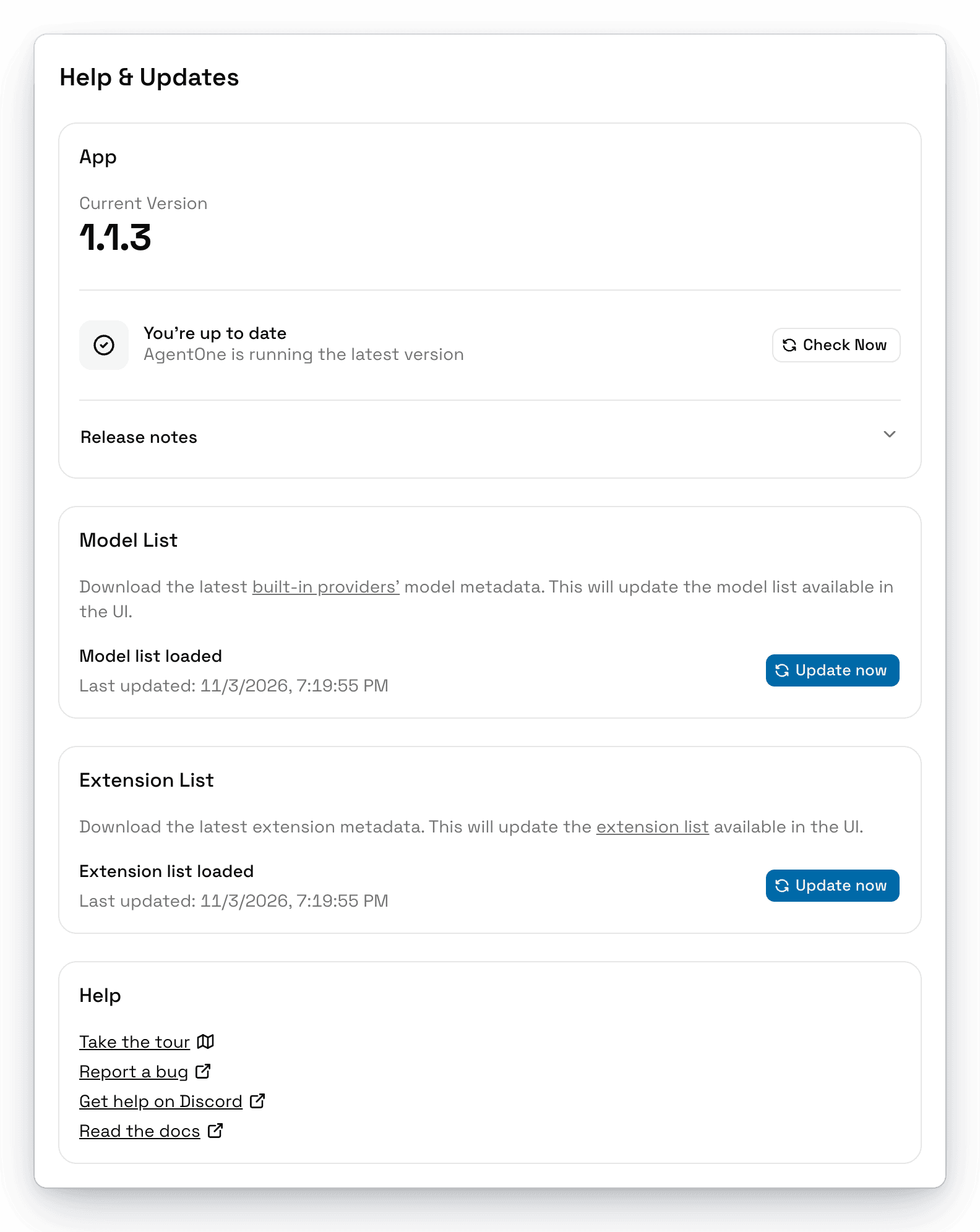
Settings->Help & Updates, then click Download & Install. AgentOne shows the download progress, installs the update, and restarts. - Click Remind me in 1 day to be reminded tomorrow, or use the arrow next to it to choose 3 days, 1 week, or 2 weeks.
Check for Updates Manually
- Open
Settings->Help & Updates. - Under App, click Check Now.
- If an update is available, click Download & Install.
Installs That Update Themselves Elsewhere
Some installs are kept up to date by your system instead of by AgentOne. In that case, Help & Updates says Automatic updates disabled and Update AgentOne through your software manager instead.
| Installed from | How to update |
|---|---|
| Microsoft Store | The Store updates AgentOne automatically. |
| Snap Store | Snap updates AgentOne automatically. |
| AUR | Update with your AUR helper, like yay -Syu. |
What's New
After an update, AgentOne shows What's New with the release notes for the new version.
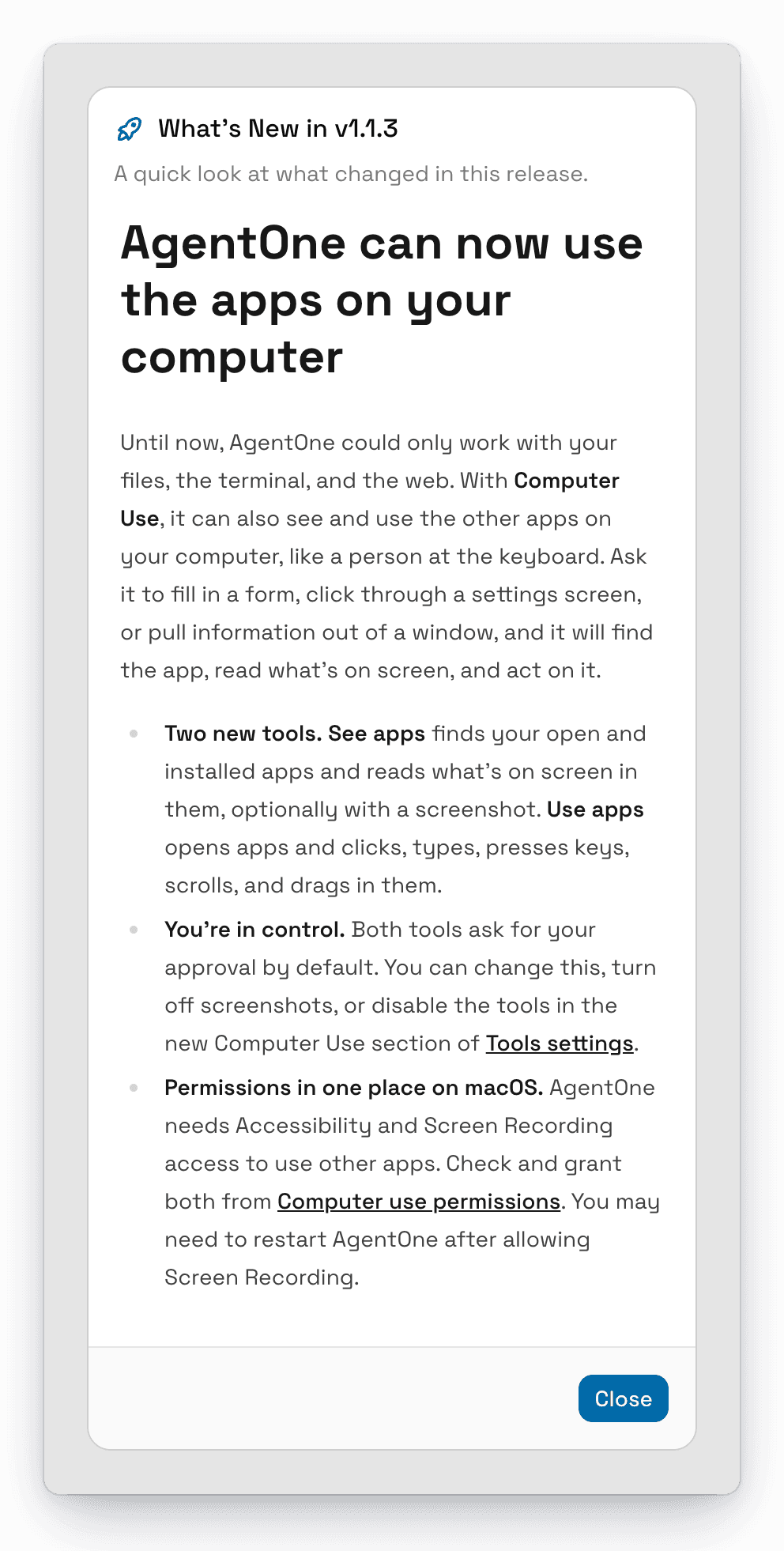
You can read the notes for any past version in Settings -> Help & Updates -> Release notes. Every release is also listed on GitHub, and big releases get a post on the AgentOne blog.
Uninstalling AgentOne
Quit AgentOne, then drag AgentOne from your Applications folder to the Trash.
Uninstalling the app doesn't delete your chats and settings. To remove them too, delete AgentOne's data folders listed in Data Locations.