Windows Setup Guide
Step-by-step instructions for installing AgentOne on Windows, including solutions for common installation issues
Get AgentOne from the Microsoft Store
Installing AgentOne from the Microsoft Store is the recommended method for Windows users. It's easy! Just open this link, or search "AgentOne" in the Microsoft Store:
https://apps.microsoft.com/detail/9NR1TW9NZZBW?hl=en-us&gl=US&ocid=pdpshare
Then click Download or View in Microsoft Store and follow the instructions.
Manually Install AgentOne on Windows
We recommend getting AgentOne from the Microsoft Store
The Microsoft Store provides a more secure and reliable installation experience. You can read the instructions for installing from the Microsoft Store above.
Download the desktop app installer
Head to: https://www.agent-one.dev/download
You'll be redirected to a download page, which will attempt to automatically detect your operating system. Make sure the Windows tab at the top of the page is selected:
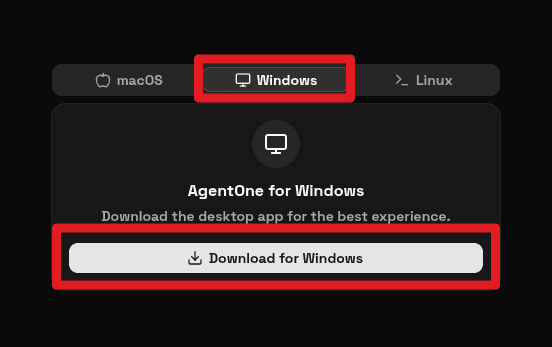
Now click Download Installer (.exe).
Run the installer
You're almost done! After downloading the installer, open it (click or double-click the .exe file) and follow the prompts to install AgentOne on your system. If you get stuck, refer to the Windows Installer troubleshooting section below.
Troubleshooting
Windows Protected Your PC
Because AgentOne is relatively new software, Windows SmartScreen may block it by default. If you see a message like Windows Protected Your PC, look for a button or link such as Learn more or Advanced, click it, and then click Run anyway.
Download Blocked by Windows
If your system is equipped with Windows Defender SmartScreen or similar security features, you may encounter warnings when attempting to download or run the installer. This is not a problem with AgentOne or Windows, it's a feature built-in to your computer.
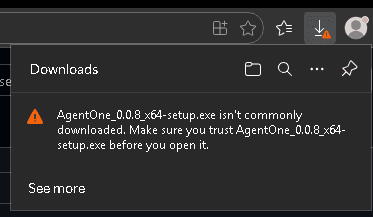
If you see a SmartScreen warning, look for an option like Advanced, Proceed anyway, or similar. In Microsoft Edge, click the three dots next to the download and select Keep. You may see an additional screen warning you that AgentOne isn't commonly downloaded. Next to the Delete button, click the dropdown arrow and select Keep anyway.
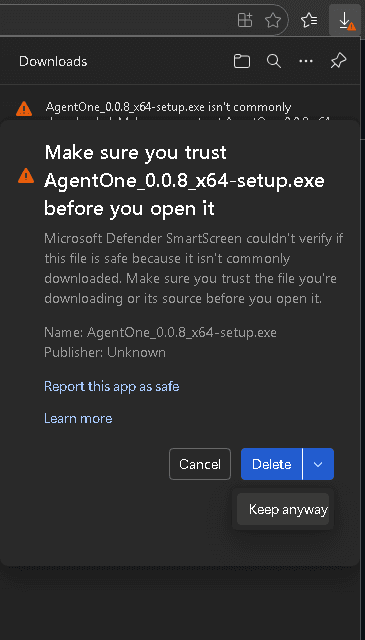
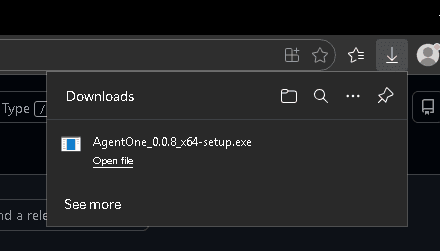
The file should then begin downloading. Once it finishes, you can click "Open file" to run the installer and follow the prompts to complete the AgentOne installation. If you encounter any issues while running the installer, see the Windows Installer troubleshooting section.
Windows Installer
If you get stuck or are unsure what option to select while running the AgentOne installer, reference this section. It will walk you through running the Windows installer exe that you downloaded in either of the previous sections.
Run the installer
After downloading the installer, try opening it from your browser. It's probably listed in the top-right corner of your browser window under a Downloads icon.
If you can't find the file, try this:
- Open your File Explorer and navigate to the
Downloadsfolder. - Look for the
AgentOne_x.x.x_x64-setup.exefile and double-click it to start the installation. - If you saved the file to a different location, navigate to that folder and double-click the installer file.
Choose an install location
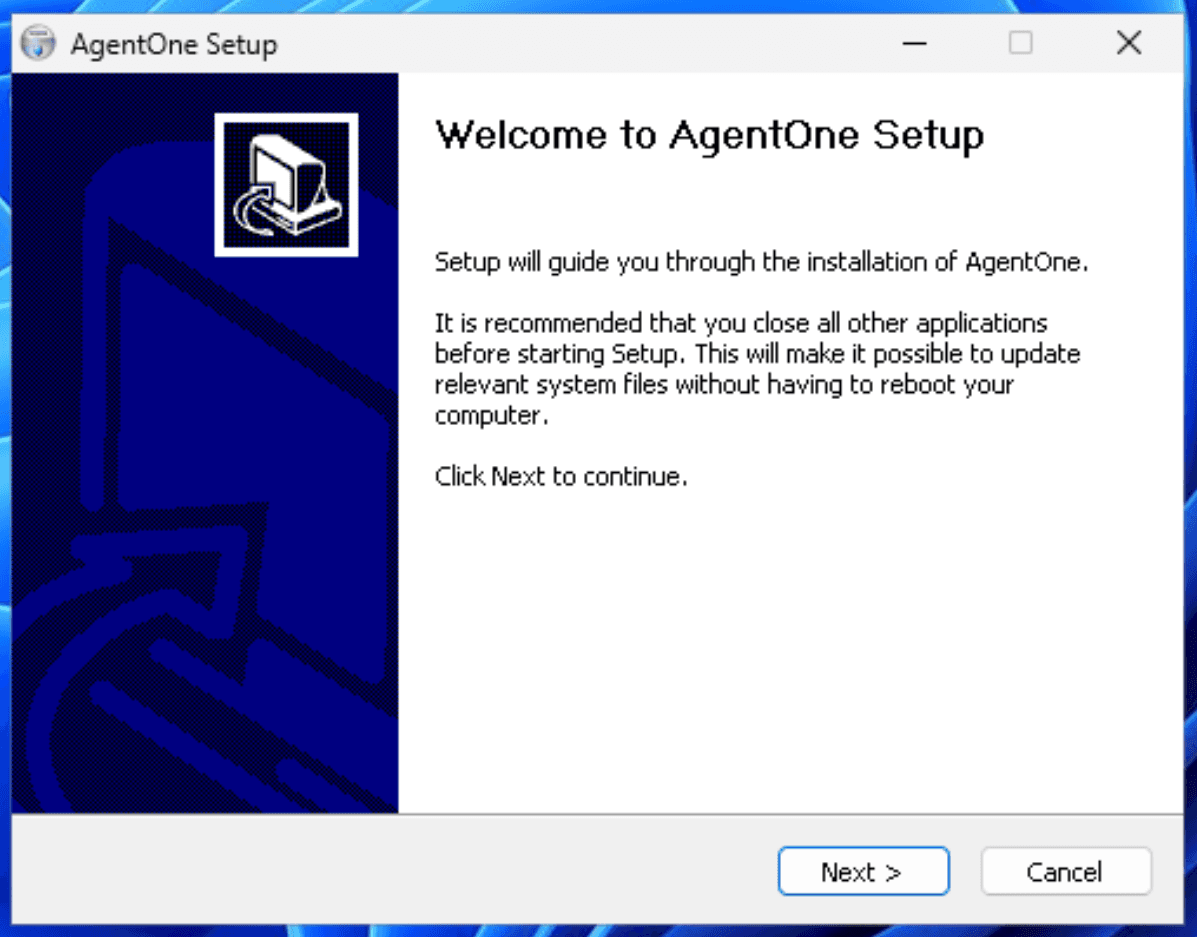
The installer window should prompt you for an installation. If you see a screen like this one first, simply click Next:
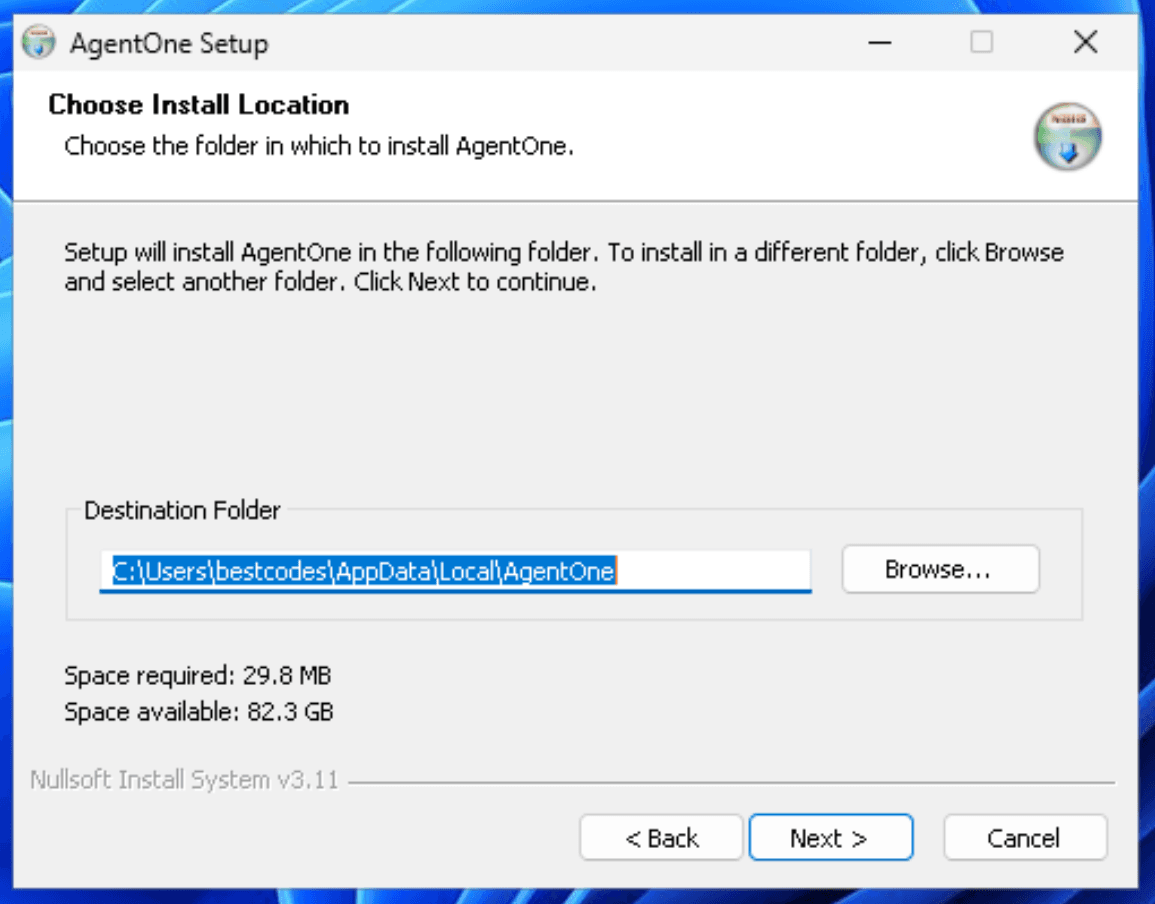
The installer should automatically detect the correct location to install AgentOne. Click Next to continue. If it doesn't choose a location for you, a good default location is C:\Users\<username>\AppData\Local\AgentOne (replacing <username> with your username).
Finish the installation
The installer should continue installing AgentOne. After each step completes, simply click Next. When the installer is finished, you'll see a Finish button and two options:
- Create desktop shortcut
- Launch AgentOne
We recommend leaving both boxes checked and clicking Finish.
Other Problems
Having a different issue? Join our Discord server for live support!