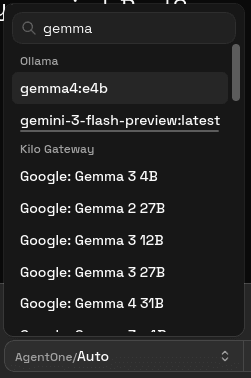
Model Selector
Choose and switch models from the chat composer in AgentOne.
The model selector lives at the bottom of every chat window, in the composer. It shows the currently active provider and model name, and lets you switch models at any point in the conversation - even mid-thread.
Opening the Selector
Click the model name in the composer bar. A panel opens showing every model available to you, grouped by provider.
On narrower windows, the same panel opens as a drawer instead of a popover, keeping the interface usable at any window size.
Searching for a Model
Type in the search field at the top of the selector to filter models by name or ID. This is the fastest way to jump to a specific model when you have many providers configured.
Filtering by Capability
Open the filter menu beside the search field to show only models with particular capabilities:
- Images
- Tools
- Attachments
- Reasoning
When you select more than one filter, a model must support all selected capabilities to remain visible. Capability badges beside each model show what it supports.
How Models Are Grouped
Models are organized under their provider's heading. The order follows roughly: AgentOne models (when signed in), then built-in cloud providers in alphabetical order, then local providers, then custom providers. Disabled providers do not appear.
What Makes a Model Visible?
A model appears in the selector only when all of these are true:
- Its parent provider is enabled in
Settings->Providers. - At least one model has been configured for that provider (either discovered automatically or added manually).
- For local providers, the runtime is reachable and has models loaded.
- You have not hidden AgentOne models via
Settings->Account->Hide AgentOne models(applies to AgentOne-hosted models only).
If you expect a model to appear but it does not, the most common fixes are enabling its provider and checking that the provider has at least one model entry. See Providers and Models Troubleshooting for more detail.
Switching Models in an Existing Chat
You can switch models at any point in a conversation. The new model takes effect for the next message you send. Earlier messages in the thread are not affected - they remain attributed to the model that generated them.
This makes it easy to start a conversation with one model and continue with another without losing the context already in the thread.
Related
- Model Config - adjust temperature, top-p, max tokens, and other settings for the active chat.
- Built-in Providers - enable cloud providers so their models appear here.
- Local Providers - connect Ollama or LM Studio.
- Custom Providers - add OpenAI-compatible endpoints with your own models.