Custom Providers
Learn how to add custom OpenAI-compatible providers to AgentOne
What is a Custom Provider?
A custom provider lets you connect AgentOne to an AI model service that isn't on our built-in list. This is useful if you're running a local LLM, using a smaller API service, or have a private inference server.
Currently, AgentOne supports custom providers that use the OpenAI API format. If your service has an API that's compatible with OpenAI's format (meaning it accepts the same requests and returns the same responses), you can connect it as a custom provider.
If you find an OpenAI compatible provider that doesn't work with AgentOne, we consider it a bug. Please report it to us on the Forum.
Examples of services you can connect:
- Local LLMs like Ollama, LM Studio, or GPT4All running on your computer
- Public API providers that offer OpenAI-compatible endpoints
- Private inference servers you've deployed yourself
- Self-hosted services like vLLM or text-generation-webui
OpenAI-compatible only
Right now, custom providers must use the OpenAI API format. If you need support for other formats, let us know on the AgentOne Forum.
Understanding the Setup
Before adding a custom provider, you need to know three things:
1. The Base URL
This is the address where your service is running. Examples:
- Local Ollama:
http://localhost:11434/v1 - LM Studio:
http://localhost:1234/v1 - Remote server:
https://api.example.com/v1(this will be different for different servers)
2. The Model Name
This is the exact name of the model you want to use. It depends on what your service has available. For example:
- With Ollama:
gemma,mistral,qwen, etc. - With a custom server: whatever models you've deployed
It's important to know these in case detecting models automatically fails so that you can enter them manually.
3. Optional: API Key and Headers
If your service requires authentication, you may need:
- An API key (similar to built-in providers)
- Custom HTTP headers (for more complex authentication)
Most local services don't require these, but remote or private services usually do.
Adding a Custom Provider
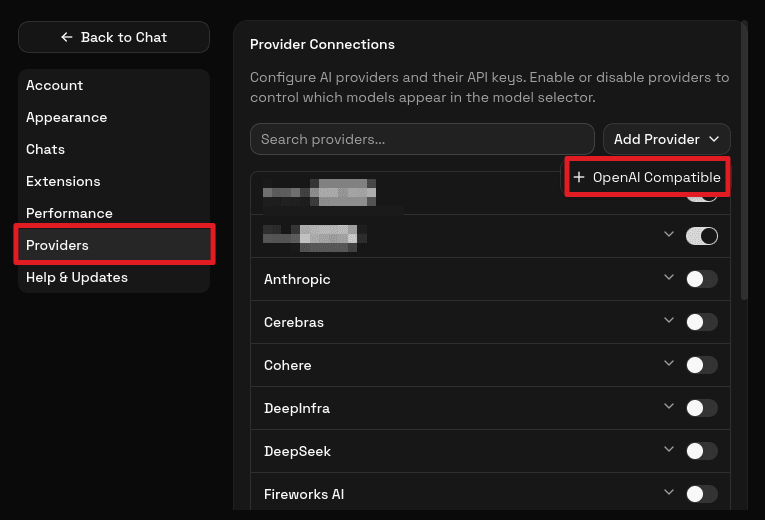
Open Provider Settings
Open the AgentOne desktop app. Click Settings in the bottom left of the sidebar, then click Providers.
Click Add Provider
Click the Add Provider button. You'll see a dropdown with the option OpenAI Compatible.
Fill in the Name
Give your custom provider a name. This is just for display in AgentOne so you know which provider it is. Examples: "My Ollama", "Local LM Studio", "Company Server", etc.
Enter the Base URL
Paste the base URL where your service is running. This should include the /v1 path at the end for most services.
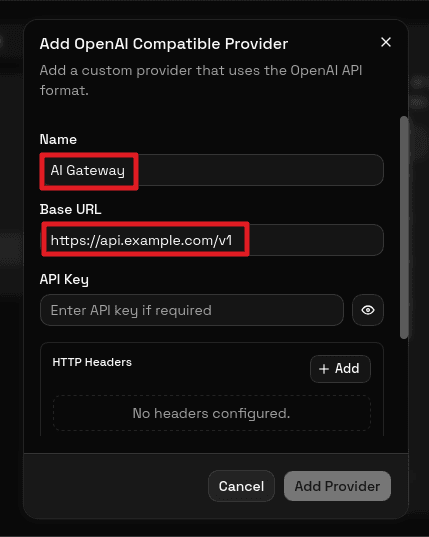
Common examples:
- Ollama:
http://localhost:11434/v1 - LM Studio:
http://localhost:1234/v1 - Remote:
https://api.example.com/v1(find this in your provider's documentation)
Add Your API Key (if needed)
If your service requires authentication, paste your API key in the API Key field. If it's a local service like Ollama or LM Studio, you can leave this blank.
Add Custom Headers (optional)
If your service needs special headers for authentication (like custom authorization schemes), you can add them here. Most services don't need this. Click Add Header if needed, but this is optional.
Add Your Models
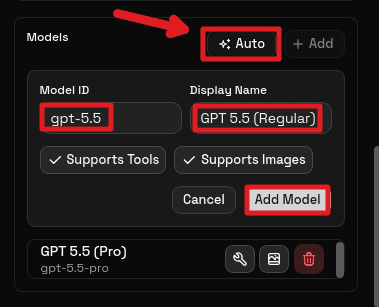
This is the important part. You need to tell AgentOne which models are available at your service. First, try to automatically detect what models are available. If this succeeds, you can skip the next step! Simply click the Auto button in the Models section. If automatic model detection succeeds, new models will be added to the list.
If automatic model detection did not succeed, you need to add models manually. Click Add Model and enter:
- Model ID: The exact name your service uses (e.g.,
gpt-5,mistral) - Display Name: What you want to see in AgentOne (e.g., "GPT 5", "Mistral 7B")
- Toggle the
Supports ToolsandSupports Imagesbuttons if the model doesn't support tools or images. If you're not sure, leave these options alone.
You can add multiple models if your service has several.
If you're not sure what models are available, check your service's documentation or admin panel.
Save the Provider
Click Add Provider to save your custom provider. It will now appear in your providers list along with your built-in providers.
Using Your Custom Provider
Once you've added a custom provider, it will appear in the providers list and can be toggled on/off like built-in providers. When it's enabled, its models will show up in AgentOne's model selector.
You can:
- Toggle it on/off with the switch to control if it's available
- Edit it by clicking on it in the list (change URL, models, API key, etc.)
- Delete it by clicking
Delete Providerat the bottom of the expanded section
Having Trouble?
Ask on the AgentOne Forum or our Discord server for help. Include your provider type (Ollama, LM Studio, etc.) and the error message you're seeing.