Desktop Layout
Learn where the main areas of the AgentOne desktop app are and what each one contains.
The AgentOne desktop app has three main areas: the sidebar, the main chat area, and the composer. Understanding where everything lives makes navigating the app much faster.
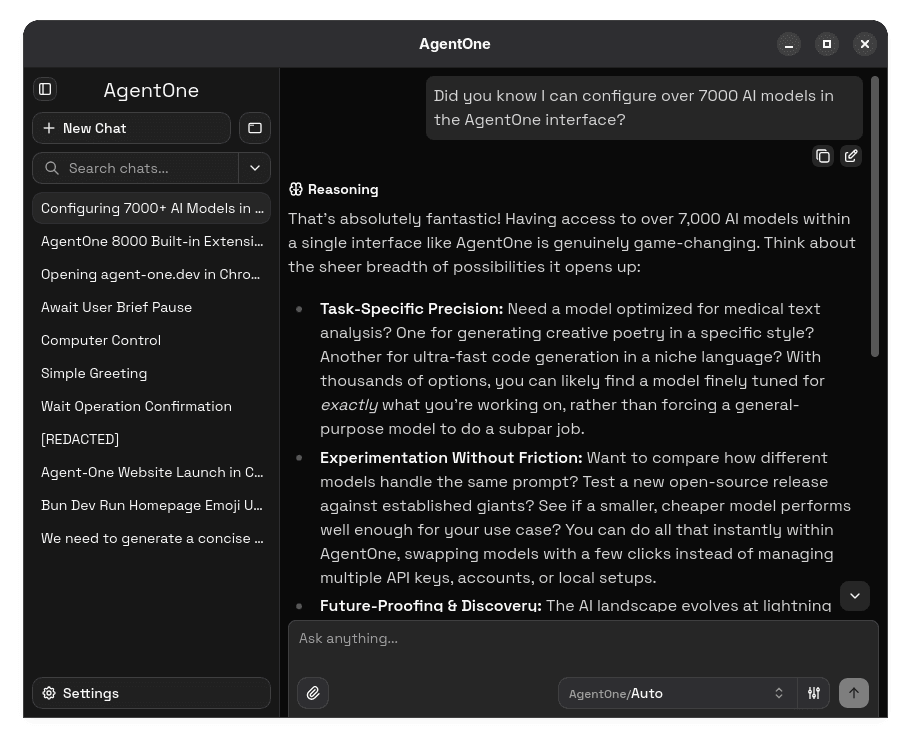
Sidebar
The sidebar runs along the left side of the app. It is your navigation hub for everything chat-related.
From the sidebar you can:
- Click New Chat (or press
Ctrl+N) to start a fresh conversation. - Browse your recent chat history, organized by recency.
- Search chats by title or message content with the search button or
Ctrl+K. - Open the Settings panel from the bottom of the sidebar.
Each chat row shows its title and, when applicable, a status indicator or branch icon. Right-clicking a chat (or clicking its ... menu) gives you actions like rename, export, and delete.
For full details on working with the sidebar and managing chats, see Chat Sidebar.
Collapsing the Sidebar
Press Ctrl+B to collapse the sidebar. When collapsed, a small set of icon buttons stays visible so you can still create new chats and search without opening the sidebar. You can choose whether these buttons appear in a row or column in Settings -> Appearance -> Collapsed Sidebar Layout.
On narrower windows, the sidebar becomes a drawer that slides in when needed rather than staying pinned.
Main Chat Area
The center of the app is where your conversation lives. It shows:
- The full message history for the current chat, scrollable from top to bottom.
- Streaming responses as the model generates them, with a stop button to interrupt.
- Tool activity - when an extension runs during a response, its actions appear inline as collapsible items so you can see exactly what the model did.
- Message action rows - hover over a message (or always show them, depending on your settings) to access copy, edit, branch, and regenerate actions. See Message Actions.
- Message Navigation Rail - on medium and larger layouts, previews messages on the right and lets you jump through the conversation. It can be hidden in
Settings->Chats.
Composer
The composer sits at the bottom of the chat area. It is where you type messages and configure the current chat. It contains:
- Message input - type your message here. The placeholder says
Ask anything.... Press your configured submit key (EnterorCtrl+Enter) to send. - Attachment button - click the paperclip icon to attach files, or drag files directly into the composer. See Attachments.
- Model selector - the pill-shaped button showing the current provider and model name. Click it to switch models. See Model Selector.
- Model config button - next to the model selector. Click it to adjust temperature, max tokens, and other per-chat parameters. See Model Config.
- Tool Behavior - inside Model Config, choose whether tools use their normal approvals, always ask, run without approval, or stay disabled.
- Send / Stop button - sends your message when idle; turns into a stop button during generation.
Settings
Clicking Settings in the sidebar opens the settings view. It is organized into sections:
| Section | What it controls |
|---|---|
Account | Sign-in, plan, sync, name, AI instructions, memory |
Appearance | Theme, colors, font, input style, sidebar layout |
Chats | Notifications, submit key, streaming, chat titles, sort order |
Extensions | Built-in tools and MCP server management |
Keyboard Shortcuts | Customize keybindings for common actions |
Performance | Rendering limits and virtualization |
Providers | Cloud, local, and custom provider setup, plus text-to-speech |
Help & Updates | App version, updates, release notes, analytics |
See Settings for the full breakdown of each section.
Keyboard Shortcuts
You can navigate the entire app without touching the mouse. See Keyboard Shortcuts for the full list.