LM Studio
Use LM Studio as a local provider inside AgentOne to run models on your own hardware.
LM Studio is a desktop app that lets you download and run open-source models locally. AgentOne includes LM Studio as a built-in local provider, so you can use it without any API key or internet connection during inference.
Prerequisites
- LM Studio installed on your machine. Download it from lmstudio.ai.
- At least one model downloaded inside LM Studio.
Setup
Download a Model in LM Studio
Open LM Studio, go to the Discover tab, search for a model (for example llama or mistral), and download it. Wait for the download to finish before proceeding.
Start the Local Server
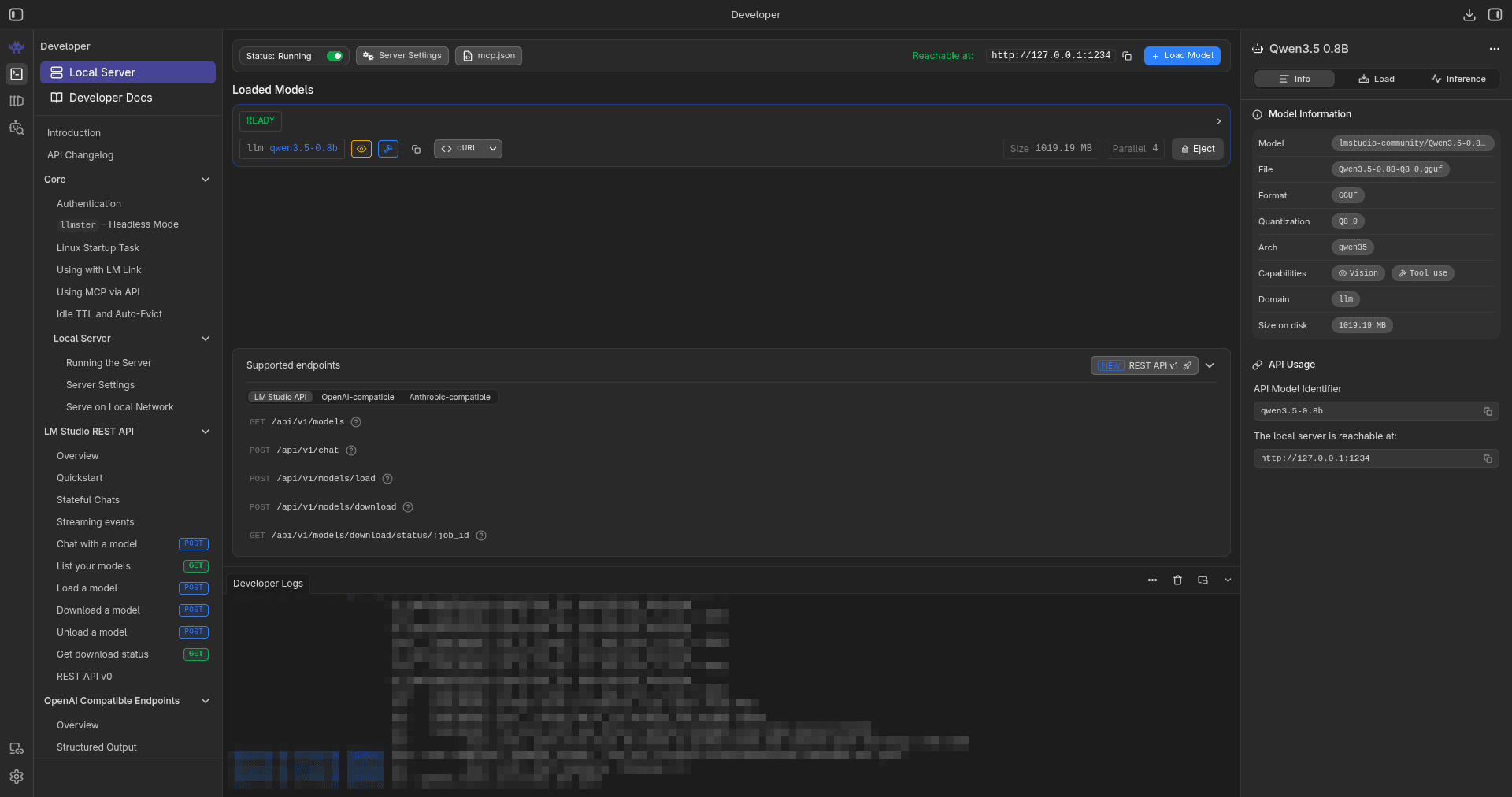
In LM Studio, go to the Local Server tab (the <-> icon in the sidebar). Load the model you want to use and click Start Server. The server defaults to port 1234.
You should see a green status indicator and a URL like http://localhost:1234.
Stuck? Read the LM Studio docs or join our Discord for free, live support.
Open AgentOne Provider Settings
In AgentOne, click Settings -> Providers and locate LM Studio under Local Providers.
Confirm the Base URL
The default base URL is http://127.0.0.1:1234/v1. If you changed LM Studio's port, update this field to match.
Detect Models
Click Auto in the Models section. AgentOne queries LM Studio's /v1/models endpoint and adds the model currently loaded in the server. The detected model appears in the model selector in chat.
Switching Models
LM Studio's local server serves one model at a time. To use a different model, go back to LM Studio, stop the server, load the new model, and restart the server. Then click Auto again in AgentOne (or add the new model manually) so it appears in the selector.
Manual Model Entry
If auto-detection does not work, add the model by hand:
- In LM Studio, check the model identifier shown in the server tab.
- In AgentOne, click
Add Modelinside the LM Studio provider. - Enter the model ID exactly as LM Studio reports it.
Why LM Studio?
- GUI-based model management - no command line needed.
- Supports a wide range of GGUF-format models from Hugging Face.
- Models run entirely on your hardware with no data leaving your machine.
- Free to use with no API billing.
For a comparison with Ollama, see Local Providers. For Ollama-specific setup, see Local LLMs with Ollama.
Troubleshooting
- Models not detected: make sure the LM Studio server is running and the model is loaded before clicking
Auto. - Connection refused: confirm the base URL port matches LM Studio's configured port.
- Server stops: LM Studio may stop the server when the app is minimized on some systems. Keep it open while using AgentOne.
See also Providers and Models Troubleshooting.