Using Custom MCP Servers (Extensions) in AgentOne
Learn what MCP is and how to connect any MCP server to AgentOne
AgentOne has over 19,000 built-in extensions which allow you to connect to thousands of apps, services, and more. However, this vast library of extensions is not comprehensive. You may wish to connect AgentOne to an app or service that's not yet on the built-in list. You're in luck! AgentOne supports this and it's pretty easy to do.
What is an MCP Server?
MCP stands for Model Context Protocol. It's a standard that Anthropic developed for connecting AI applications (e.g. AgentOne) to external systems (e.g. Gmail, Canva, etc.). Think of it like USB-C for AI agents... just like USB-C is standardizing the way we connect and charge devices, MCP is standardizing the way we connect AI to tools.
AgentOne supports two types of MCP servers:
- STDIO servers, which run locally on your device. These are typically less secure than HTTP (remote) servers, as they have access to your system.
- HTTP servers, which run remotely on another server. Typically, these require a consistent internet connection. While much more secure than STDIO (local) servers, they can still be malicious.
- SSE servers are not supported. If you need to use an SSE HTTP server with AgentOne, please request this feature on the AgentOne Forum.
How to Install a Custom MCP Server
Be cautious when installing unknown MCP servers
You should never install an MCP server that you don't trust. We recommend installing MCP servers only from reputable sources. Also verify that MCP servers you install are official, meaning they are developed by the service you are trying to connect to, not a third party.
To install a custom MCP server, you'll need to determine what type of server it is. If you have a "Command" beginning with something like npx, docker, or uvx, it's probably an STDIO MCP server. If you have a connection URL beginning with something like https://, it's almost certainly an HTTP MCP server. Once you've figured this out, you can read the instructions for that type of server below.
STDIO Server
Install Required Tools
If you're not a developer, there's a high chance you'll need to install additional tools on your system to use STDIO MCP servers. Here's a guide to what you may need to install, based on what the Command for the MCP server you want to add begins with. If you're not sure what the Command is, it looks something like this:
npx -y xyzNavigate to Extension Settings
If you haven't downloaded AgentOne yet, please check the Installation Guide. Open the AgentOne desktop app, expand the sidebar and click Settings in the bottom left, then click Extensions in the sidebar.
Add a Custom Extension
Next to the search bar, click Add Custom. Select STDIO (Local) as the server type, give your server a name, and paste the command for your server in the Command field.
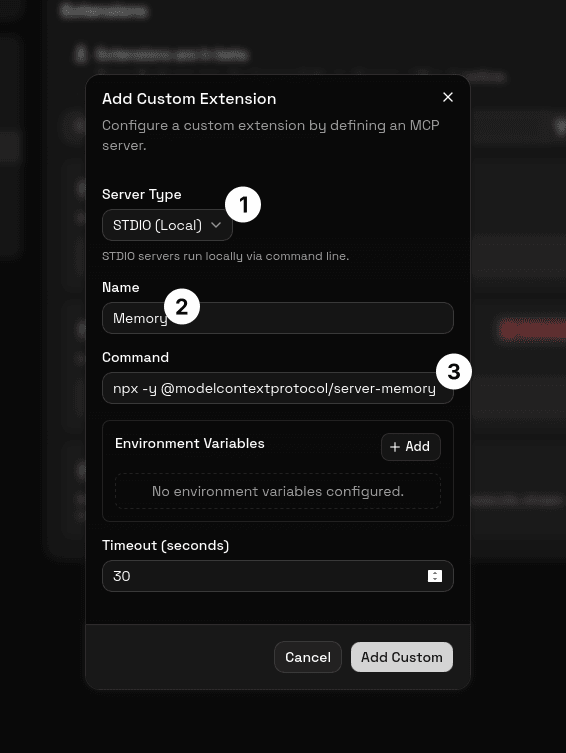
If the instructions for the server you're adding mentions environment variables, you can add those too in the Environment Variables section.
That's it! Click Add Custom to install the extension, then start a chat with AgentOne. It will have access to the new extension you added.
HTTP Server
Navigate to Extension Settings
If you haven't downloaded AgentOne yet, please check the Installation Guide. Open the AgentOne desktop app, expand the sidebar and click Settings in the bottom left, then click Extensions in the sidebar.
Add a Custom Extension
Next to the search bar, click Add Custom. Select HTTP (Remote) as the server type, give your server a name, and paste the connection URL for your server in the URL field.
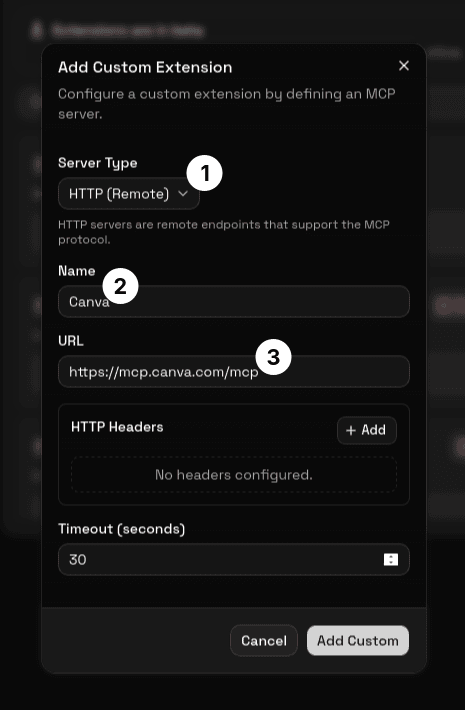
If the instructions for the server you're adding mentions HTTP headers, you can add those too in the HTTP Headers section.
Click Add Custom to install the extension.
Sign In if Necessary
The extension may prompt you to sign in. In this case, simply click the Login button and follow the instructions.
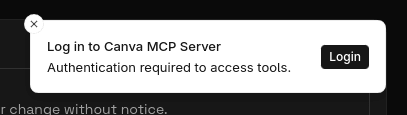
That's it! Start a chat with AgentOne. It will have access to the new extension you added.