Providers
Learn what a provider is and how to connect a provider to AgentOne
What is a Provider?
A provider is a company that builds and hosts AI models. Think of them as the source of the AI itself. For example:
- OpenAI makes GPT-5, Codex models, and other models
- Anthropic makes Claude
- Google makes Gemini
- Groq makes very fast models
AgentOne supports over 60 different providers out of the box. This means you have choices... different models have different strengths (speed, quality, cost, reasoning ability, etc.), so you can pick what works best for your needs.
What is an API Key?
An API key is like a password that lets AgentOne talk to a provider's servers. When you use a model from OpenAI or Anthropic for example, AgentOne needs permission to access it, and the API key is what grants that permission.
Think of it like a car key:
- The provider (e.g., OpenAI) is the car
- The API key is your key to use it
- Without the key, you can't access it
Your API keys stay private
Your API keys are encrypted and stored locally on your device only. AgentOne never sends them to our servers or any third party.
Getting an API Key
Each provider has their own website where you can create an API key. Try searching the web or asking AgentOne for help, for example "how to get an OpenAI API key". There's no standard process to obtain an API key across all providers, so you'll want to find a specific guide for your provider.
Once you have your API key, follow the steps below to connect it to AgentOne.
Connecting a Built-in Provider
Open Provider Settings
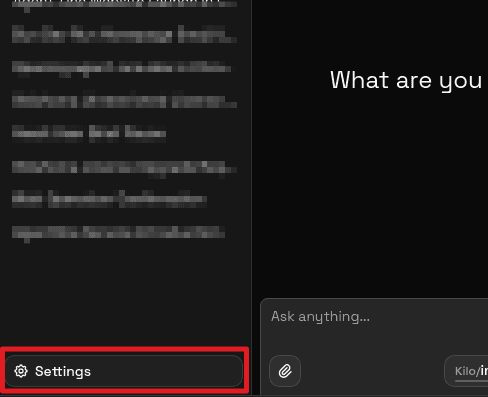
Open the AgentOne desktop app. Click Settings in the bottom left of the sidebar, then click Providers.
Find Your Provider
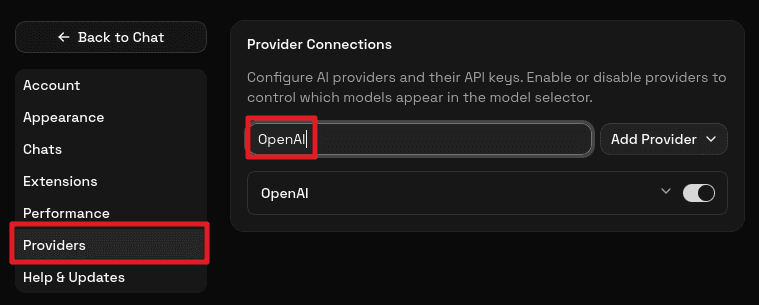
You'll see a list of all supported providers. Scroll through to find the one you want to connect (e.g., OpenAI, Anthropic, Google, Groq). You can also search by name, as shown in the image below.
Enable the Provider
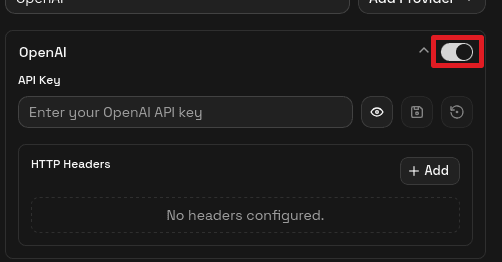
Click on your provider to expand it. Toggle the switch on the right to enable this provider.
Paste Your API Key
In the API Key field, paste the API key you created from the provider's website. The field will hide your key for privacy (you'll see dots instead of the actual text).
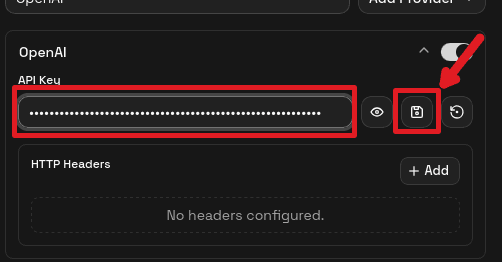
Importantly, click the save button after pasting your API key or it will not be saved!
Done!
That's it! The provider is now connected. All of its available models will appear in AgentOne's model selector. You can now chat with AgentOne and choose models from this provider.
If you ever want to disable the provider or use a different API key, you can come back to this screen and toggle it off or update the key.
Custom Providers
If AgentOne doesn't support a provider you need, you can add a custom one. To learn more about this, check out the Custom Providers documentation.
More Provider Guides
Built-in Providers
Enable cloud providers and manage API keys and model overrides.
Local Providers
Use Ollama or LM Studio for private, on-device inference.
Model Selector
Switch models mid-conversation and understand what makes a model visible.
Model Config
Tune temperature, top-p, max tokens, and other per-chat parameters.
Model Metadata
Understand context window, output limits, and capability flags.
OpenAI
Get an OpenAI API key and connect GPT models.
Anthropic
Get an Anthropic API key and connect Claude models.
Google Gemini
Get a Google AI API key and connect Gemini models.
Groq
Get a Groq API key and connect fast open-source models.
Mistral
Get a Mistral API key and connect Mistral models.
Ollama
Run local LLMs with Ollama.
LM Studio
Run local models with LM Studio's GUI.
Reading Aloud
AgentOne can read messages out loud using its own providers and API keys.