Local LLMs with Ollama
Use AgentOne's built-in Ollama provider to run open-source models locally
What is Ollama?
Ollama is a tool that lets you run open-source AI models on your computer. This is useful if you want to:
- Use models offline without internet or API keys
- Keep data private (nothing leaves your machine)
- Avoid API costs from cloud providers
- Experiment with different models easily
AgentOne includes a built-in Ollama provider, so you can chat with models like Gemma, Mistral, Llama, and Qwen right from the app without setting up a custom provider first.
Install Ollama and Download a Model
First, let's install Ollama and download a model to use locally.
Download and Install Ollama
Visit ollama.com and download Ollama for your operating system (macOS, Linux, or Windows). Follow the installation instructions for your OS. Once installed, Ollama will run as a background service. To verify the installation, open a terminal and run:
ollama --versionIf it shows a version number, you're good to go!
Download a Model
Ollama comes with access to many open-source models. Let's download Gemma 4 4B - a lightweight, fast model that's perfect for local use. Open your terminal or command prompt. Run:
ollama pull gemma4:e4bThis downloads the model (about 9.6GB). Depending on your internet speed, this may take a while! Once complete, list your installed models to make sure everything is there:
ollama listYou should see gemma4:e4b in the list.
Ensure the Server is running
On macOS and Linux, the server should be running by default. Try opening http://localhost:11434/v1/models in your browser to see if it is (you should see some formatted data). If the server is not running, you may need to run ollama serve first or download the Ollama desktop app and open it.
Want a different model?
You can browse ollama.com/library to see all
available models. Just replace gemma4:e4b with any model name (e.g.,
mistral, qwen).
Use the Built-in Ollama Provider in AgentOne
Now let's enable Ollama in AgentOne.
Open Provider Settings
In AgentOne, click Settings in the bottom left of the sidebar, then click Providers.
Find Ollama Under Local Providers
Scroll to the Local Providers section and expand Ollama.
Confirm the Base URL
By default, Ollama uses:
-
Base URL:
http://127.0.0.1:11434/v1AgentOne already creates this built-in provider for you, so you do not need to add it manually.
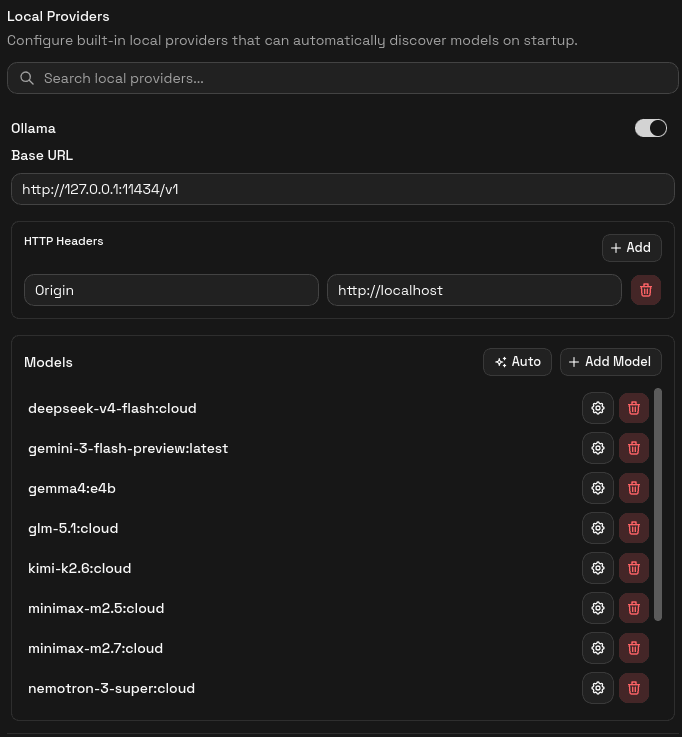
Auto-Detect Models
In the Models section, click the Auto button. AgentOne will query your Ollama server and find available models.
If auto-detection succeeds, you'll see gemma4:e4b in your model list. Done!
Manual Fallback
If auto-detection fails, click Add Model and enter:
-
Model ID:
gemma4:e4b -
Display Name:
Gemma 4 (4B)(or whatever you prefer)Leave the capability toggles at their defaults unless you know the model should behave differently.
Keep Ollama Enabled
Make sure the Ollama provider's switch is enabled. Once a model is listed there, it becomes available in AgentOne's model selector.
Use Gemma in AgentOne
Your Ollama provider is ready. You can now:
- Toggle it on/off with the provider switch
- Switch to Gemma 4 in the model selector
- Chat normally just like you would with a cloud provider, but locally.
First request might be slow
The first time you chat with Gemma, it may take a few seconds to load into memory. Subsequent messages will be faster.
Tips & Troubleshooting
Ollama isn't responding
- Make sure Ollama is running (check System Preferences on macOS or Services on Windows/Linux)
- Verify the base URL is
http://127.0.0.1:11434/v1with/v1at the end andhttpinstead ofhttps
Model loading is slow
- Gemma 4 (4B) is lightweight, but still takes a moment to load. Stick with it... it gets faster after the first use.
- If you want a faster experience, try a smaller model from the model library
Want to try other models?
Visit the Ollama library, run ollama pull <model-name>, then click Auto again or add the model manually in the built-in Ollama provider.
For help, reach out on the AgentOne Forum or Discord.