Connect an App with an Extension
Install the Linear extension, sign in, and manage issues by chatting with AgentOne.
Extensions let AgentOne work with your other apps. In this guide, you'll connect Linear, a project tracker, but the steps are the same for most apps, like Notion, Canva, Figma, Supabase, and Stripe.
Find the extension
Open the account menu, click Extensions, and search for linear. Look for the official one, published as app.linear/linear, and click Install.
Install it
Linear's extension is a remote extension, so AgentOne fills in everything for you.
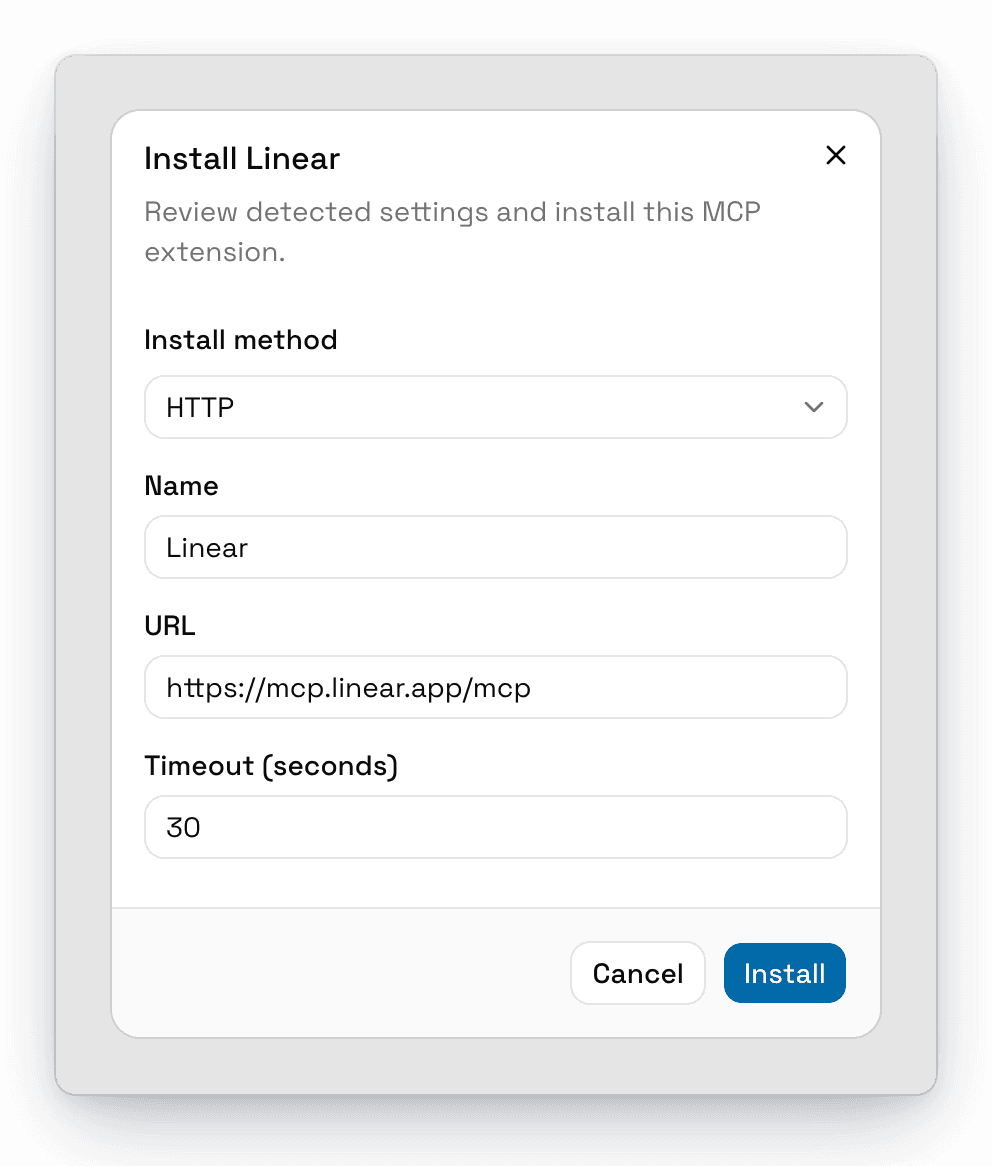
Click Install.
Sign in to Linear
The extension's status says Authentication required to load tools. Click Advanced, then Connect. Your browser opens Linear's sign-in page. Sign in, approve access for AgentOne, and come back.
Once you're connected, the status changes to Loaded successfully with a number of tools.
Decide what needs approval
By default, extension tools run without asking. For an app where AgentOne can make changes, you may want approval for anything that edits or deletes. In Advanced, open Per-tool approvals and set those tools to Approval required, or turn on Require Approval By Default. Click Save changes.
Try it
Start a new chat and ask:
Which Linear issues are assigned to me and due this week? Summarize them in a table.AgentOne uses the Linear tools to look up your issues. Each tool call appears in the chat, so you can see exactly what it did.
Ideas to Try
- "Create a Linear issue for the login bug I just described, and assign it to me."
- Combine extensions: "Read my Notion meeting notes from today and create Linear issues for each action item."
- Put it on a schedule: "Every Monday at 9am, summarize what my team finished in Linear last week." See Scheduled Agents.