Chat Sidebar
Use the sidebar to create, navigate, search, and manage your chats in AgentOne.
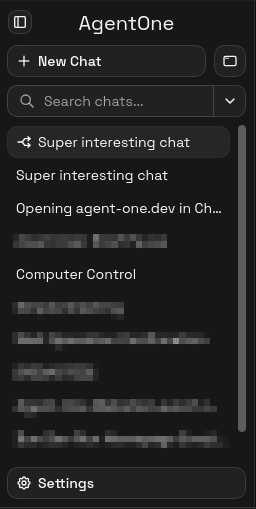
The sidebar is the navigation hub on the left side of the desktop layout. Every chat you have ever started lives here, organized with the most recent at the top.
Creating Chats
Click New Chat at the top of the sidebar, or press Ctrl+N from anywhere in the app, to open a fresh conversation. The new chat becomes active immediately.
Browsing Chat History
The sidebar lists your chats in reverse chronological order. Each row shows:
- The chat title (auto-generated from the conversation, or set manually).
- A status indicator while a response is in progress.
- A branch icon if the chat was created by branching from another conversation. See Branch Conversations.
- A search snippet when you are viewing content search results.
Clicking a chat opens it in the main area.
Per-Chat Actions
Every chat row has a ... menu (also accessible by right-clicking the row). The menu includes:
- Change Title - rename the chat to whatever you want.
- Export Chat - download the chat as a JSON file. See Exports and Deletion.
- Delete Chat - permanently remove the chat.
- Select Chat - enter selection mode for this chat.
Selection Mode
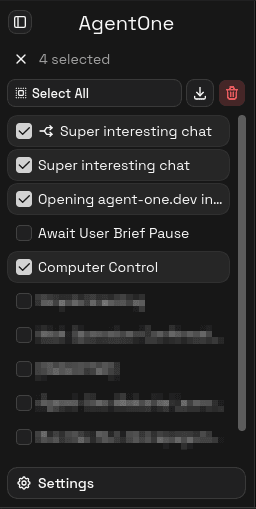
Selection mode lets you manage multiple chats at once. Enter it by choosing Select Chat from the ... menu, or by Shift-clicking any chat row.
While in selection mode you can:
- Select All or Deselect All with one click.
- Bulk export - download all selected chats as a single JSON file.
- Bulk delete - delete all selected chats at once (with a confirmation prompt).
Exit selection mode by clicking the cancel button or pressing Escape.
Collapsing the Sidebar
Press Ctrl+B to collapse the sidebar. When collapsed, AgentOne shows a compact strip of icon buttons - enough to open the sidebar, search, or start a new chat without needing the full sidebar open.
Whether those buttons appear in a Row or Column layout is configurable in Settings -> Appearance -> Collapsed Sidebar Layout.
On narrower windows, the sidebar becomes a drawer instead of a pinned panel, so it does not crowd the chat area.
Opening Settings
The Settings button at the bottom of the sidebar opens the settings view. You can also reach it with Ctrl+,.
Related
- Search Chats - find chats by title or message content.
- Exports and Deletion - export and delete chats individually or in bulk.
- Keyboard Shortcuts - all sidebar-relevant shortcuts.