Message Actions
Copy, edit, regenerate, and branch conversations from any message in AgentOne.
Every message in a chat - both yours and the model's - can be acted on directly. The message action row appears on hover (or always, depending on your settings) and gives you a set of quick actions without needing to navigate away.
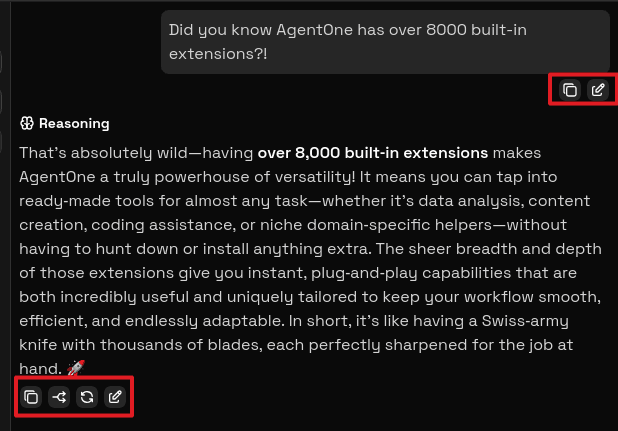
Showing the Action Row
By default, the action row appears when you hover over a message. You can change this behavior in Settings -> Chats -> Message Action Row:
- Show on hover (default) - the row appears when the mouse is over the message.
- Always show - the row is permanently visible for every message.
- Never show - the row is hidden. The underlying actions still work where the UI exposes them in other ways (for example, the edit pencil icon still appears on focus for some message types).
Available Actions
Copy Message
Copies the full text of the message to your clipboard. For assistant messages, this copies the raw markdown content.
Edit Message
Opens the message text in an inline editor. You can change the content and then:
- Click Save to apply the change.
- Toggle Regenerate when Saved to control whether AgentOne regenerates the conversation from that point after saving.
- Click Cancel to discard changes.
Whether Regenerate when Saved is on or off by default is controlled by Settings -> Chats -> Regenerate on Save. See Edit Messages for more.
Both user messages and assistant messages can be edited. Editing an assistant message and saving without regeneration replaces the stored content but does not send anything new to the model.
Regenerate Response
Available on assistant messages. Sends the current conversation state back to the model and asks for a new response from that point, discarding the previous assistant message. Useful when you are unhappy with an answer and want a fresh attempt.
Branch Conversation
Creates a new chat that starts from this message's context. The original chat is unchanged. See Branch Conversations for the full explanation of when and why to branch.
Read Aloud
Appears on assistant messages only. Plays the message through your speakers using a text-to-speech provider you configure in Settings -> Providers. Click the speaker icon to start, click again or tap the stop button to interrupt.
Only shows up when a text-to-speech provider is set up with an API key.
Related
- Reading Aloud - configure text-to-speech providers.
- Editing Messages - full detail on the edit flow and the regenerate-on-save setting.
- Branch Conversations - fork a chat to explore a different direction.
- Chat Settings - configure action row visibility and default regenerate behavior.