Attachments
Add files and attached chats to a conversation in AgentOne.
AgentOne lets you attach files directly from the composer.
Ways To Add Files
- click the paperclip button
- drag files into the composer
- paste files from your clipboard
Supported File Types
AgentOne accepts many common file types, including:
- images
- text files
- PDFs
- videos
- common code files such as
js,ts,tsx,py,rs,go,java, and more
Remove An Attachment
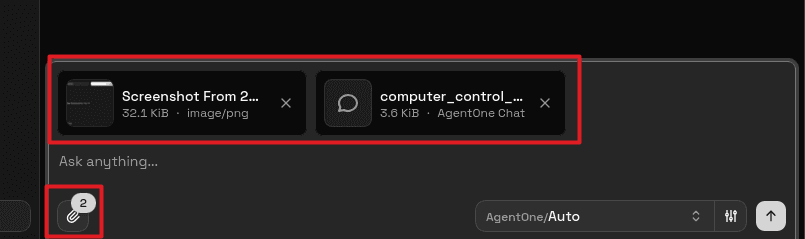
Attached files appear above the composer. Remove one before sending if needed.
Drag A Chat Into Another Chat
You can drag a chat from the sidebar into the composer.
When you do, AgentOne exports that chat into a file-like attachment and adds it to the current draft. This is useful when you want one conversation to reference another.
Drag-And-Drop Overlay
When you drag a file or chat over the composer, AgentOne shows a drop target that says Drop files or chats to attach.
When Attachments Are Disabled
The attach button is unavailable when:
- no model is available
- a response is already in progress
- tool approval is blocking message submission