Branch Conversations
Fork a conversation at any message to explore different directions without losing the original.
Branching lets you fork a conversation from a specific point. The original chat stays exactly as it was - you get a new, independent chat that starts with the same context up to and including the message you branched from.
How to Branch
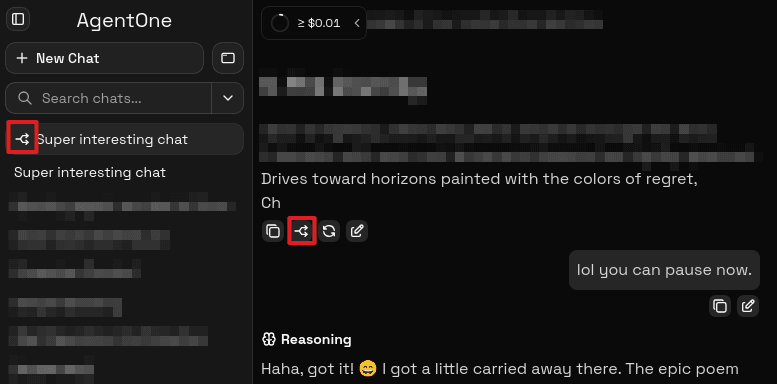
- Hover over any message in the chat to reveal the message action row.
- Click Branch conversation.
AgentOne creates a new chat containing all messages up to and including the one you branched from, opens it, and adds a branch icon to the new chat in the sidebar.
Why Branch Instead of Edit?
Branching and editing both let you explore alternate paths, but they serve different purposes:
- Edit a message when you want to correct something and continue in the same chat thread. The edit replaces the original message in place.
- Branch when you want to try a completely different direction while keeping the original thread intact and unmodified. After branching you have two separate chats, and you can freely continue both.
Branching is especially useful when you have invested significant context in a long conversation and want to test an alternate prompt, a different framing of a question, or a different model without risking the original work.
Finding Branched Chats
Branched chats appear in the sidebar with a branch icon next to their title. They are otherwise full chats - you can rename them, export them, delete them, and continue the conversation just like any other chat.
Related
- Message Actions - the full set of per-message actions.
- Edit Messages - modify messages in place with optional regeneration.
- Chat Sidebar - navigate between chats including branched ones.